
TL;DR
Occupied to Vacant is an AI tool that removes furniture and decor from room photos so buyers can visualize the space clearly. It’s ideal for small, curated apartments and cluttered rooms where objects distract from windows, floors, and layout. If you’re searching “how to remove clutter and objects from listing photos,” try uploading a photo to ReimagineHome.ai and test it while you read: ReimagineHome.ai. You’ll get fast, realistic results that improve clicks, showings, and seller confidence.
The Real Cost of Showing Rooms ‘As They Are’ Online
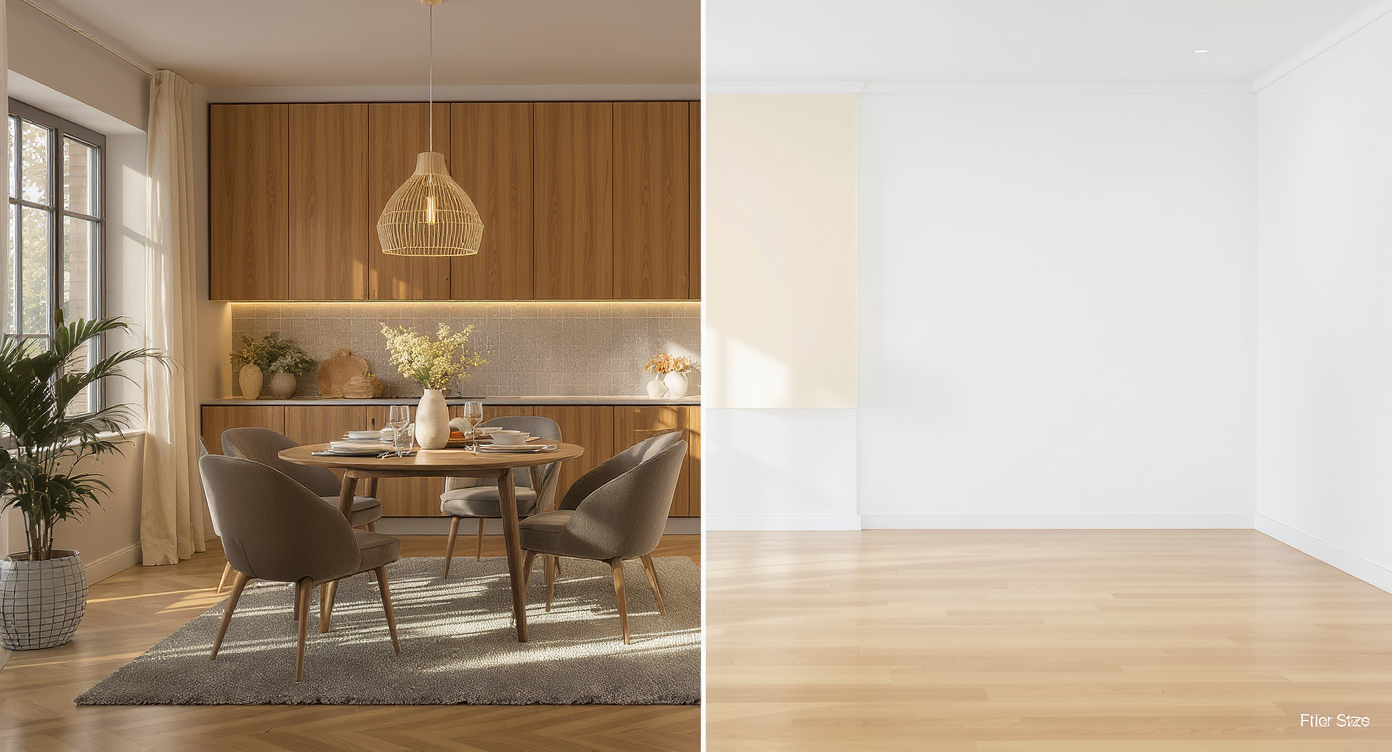
AI clears rooms seamlessly, helping buyers focus on space, scale, and light.
Occupied → Vacant is an AI-powered way to clear furniture and decor from an interior photo, delivering a clean, empty version of the same room. It solves a common listing problem: buyers focus on objects rather than architecture, so removing visual noise helps them understand scale, light, and layout instantly.
- Results: Clear the room so key features — floors, windows, built-ins — are the heroes.
- Realism: Shadow-aware removals maintain believable light and perspective.
- Speed: Minutes from upload to export, even for multi-room tours.
- Cost: Far cheaper than physical vacating, storage, and reshoots.
- Workflow: Use the empty result as-is or re-stage with AI.
- ROI: More clicks, faster decisions, easier seller conversations.
- Peace of mind: Edit without risk; undo, refine, and keep originals.
If you already have a tricky occupied photo in mind, upload it to ReimagineHome.ai and try this on a real image while you read.
Why This Visual Problem Hurts More Than You Think
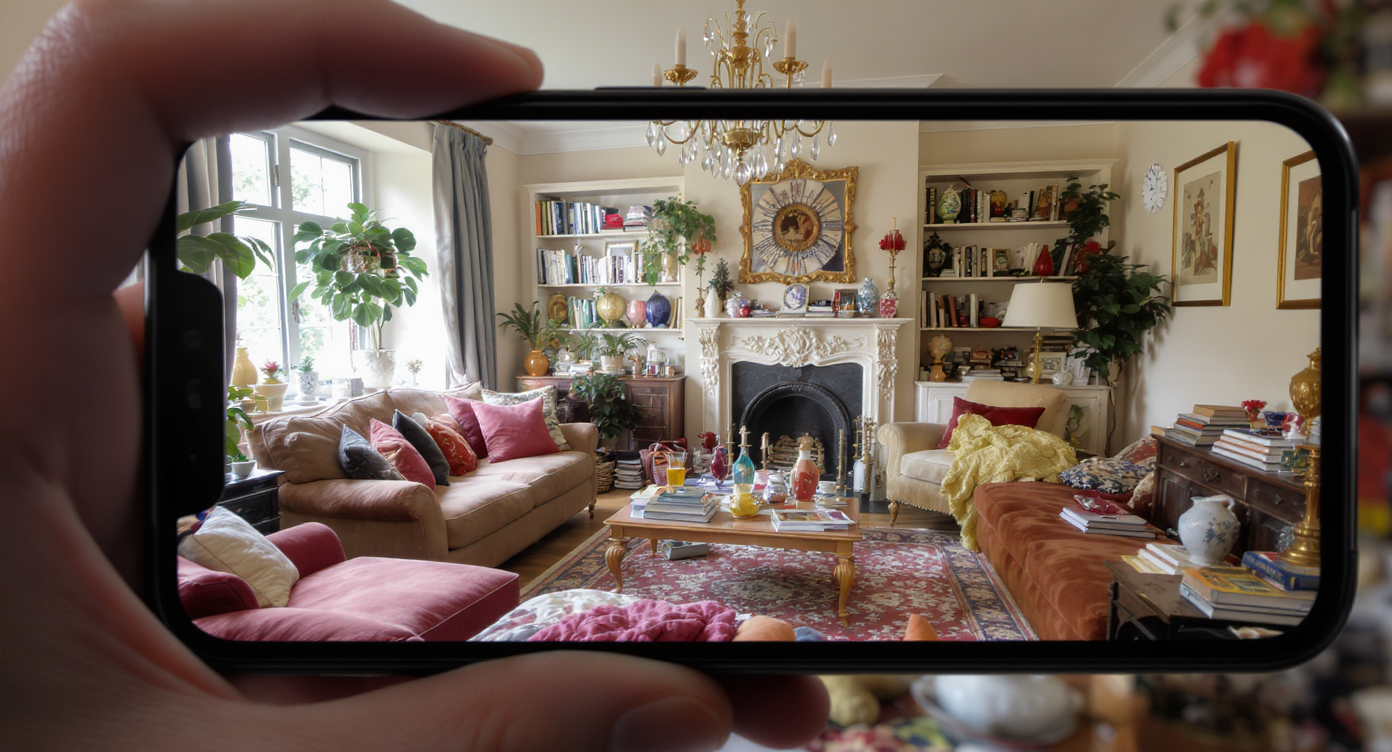
Busy interiors on small screens make spaces appear smaller and less inviting.
Even beautiful, curated rooms can read smaller and busier on mobile screens than they are in real life. When shelves are full of books, art, and lamps — or a dining nook doubles as a workspace — the eye jumps between items and misses ceiling height, window scale, and traffic flow. That’s why occupied listings often see buyers swipe past quickly: the space feels personal and complete, leaving little mental room to imagine their own life there.
Consider a cozy Scandinavian apartment — layered textiles, vintage chairs, inherited tapestry, a sea of warm light from multiple lamps. In person, it’s charming. In a feed or MLS carousel, details pile up and the layout becomes hard to decode. Clearing a photo to vacant creates instant breathing room: floors extend, corners appear, and the path from sofa to window suddenly makes sense.
For sellers, this reduces friction. For agents and photographers, it simplifies the story of the space. For buyers, it’s permission to picture their furniture, their books, their colors — not someone else’s.
Anecdote
That perfect but object-filled city apartment: great art, cobalt desk chair, layered lamps. In person, magic. Online, buyers can’t see the full wall for their own sofa. Clear it, and the room suddenly breathes.
What Occupied → Vacant Actually Is (In Plain Language)

AI removes furniture and decor to reveal clean room structure and light balance.
Occupied → Vacant is a focused form of AI object removal built for interiors: it erases furniture, decor, and small clutter while preserving architecture, lighting, and perspective. You upload a photo, the tool identifies removable objects, and you get a realistic empty-room image suitable for listings or design previews.
Use it when you need to show floor area, wall length for a sectional, a clean view of windows and doors, or a closet/built-in that’s hidden by items. To try it now, open ReimagineHome.ai’s Occupied to Vacant tool and clear a living room, bedroom, or office image in minutes. If you later want to furnish the empty result, you can hand it off to ReimagineHome.ai’s virtual staging solution to add decor that fits your market.
How Occupied → Vacant Works Step by Step
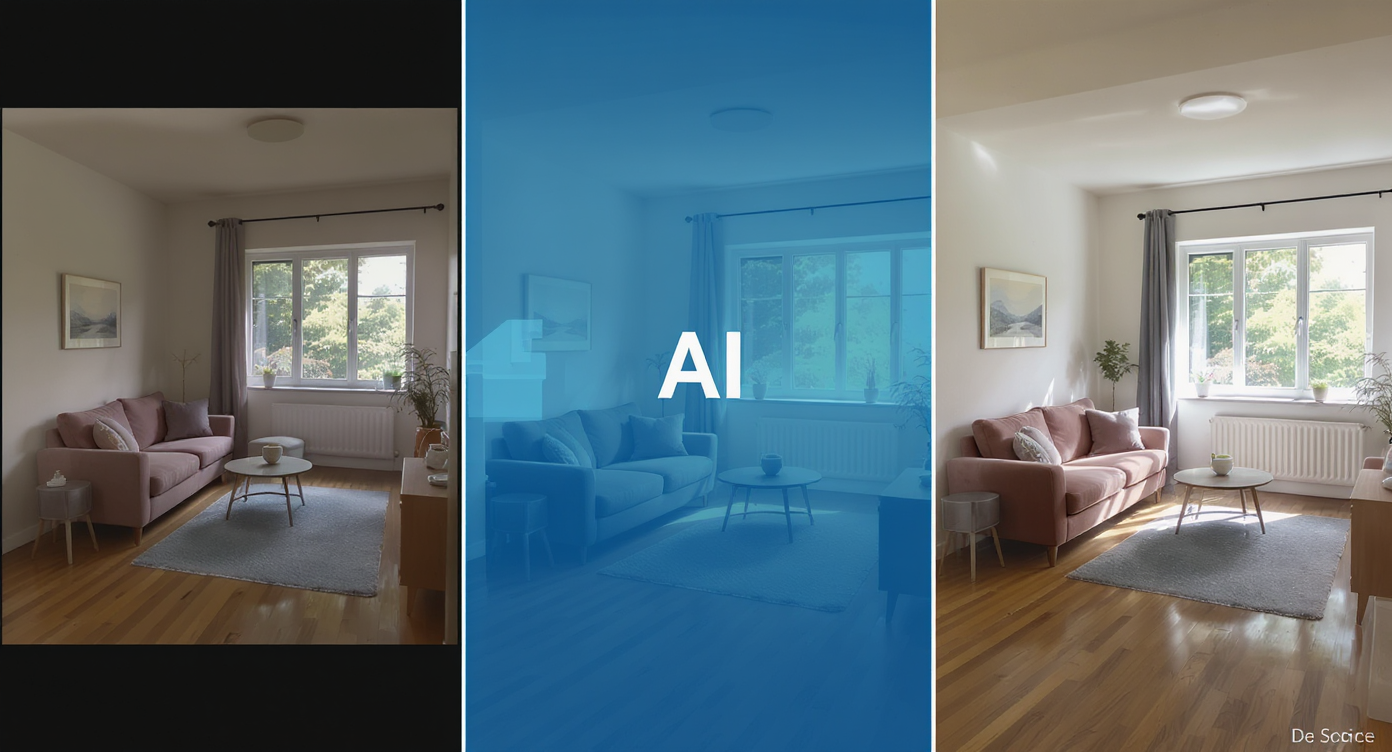
Clear rooms effortlessly with AI in just three simple steps from upload to export.
Good inputs drive good outputs: aim for sharp, well-lit photos with straight verticals and at least 2500–3000 pixels on the long edge. Here’s the simple workflow:
- Choose the right photo(s): Select angles that show a full wall-to-wall view and include the floor. Avoid extreme wide angles that warp proportions.
- Upload to ReimagineHome.ai: Drag-and-drop your JPEGs or PNGs.
- Select Occupied → Vacant: Pick the tool designed to remove furniture and clutter.
- Refine the selection (optional): If needed, brush in/out items to keep a specific lamp or remove a side table.
- Generate and review: Check edges around rugs, sofa feet, and baseboards for realism; regenerate if you want alternate results.
- Export for MLS/portals/clients: Download high-resolution images and keep the original for disclosure if your market requires it.
Pro tip: Shoot from 40–52 inches camera height so furnishings read naturally and the empty result maintains believable sightlines.
Tips and Tricks for More Realistic Results
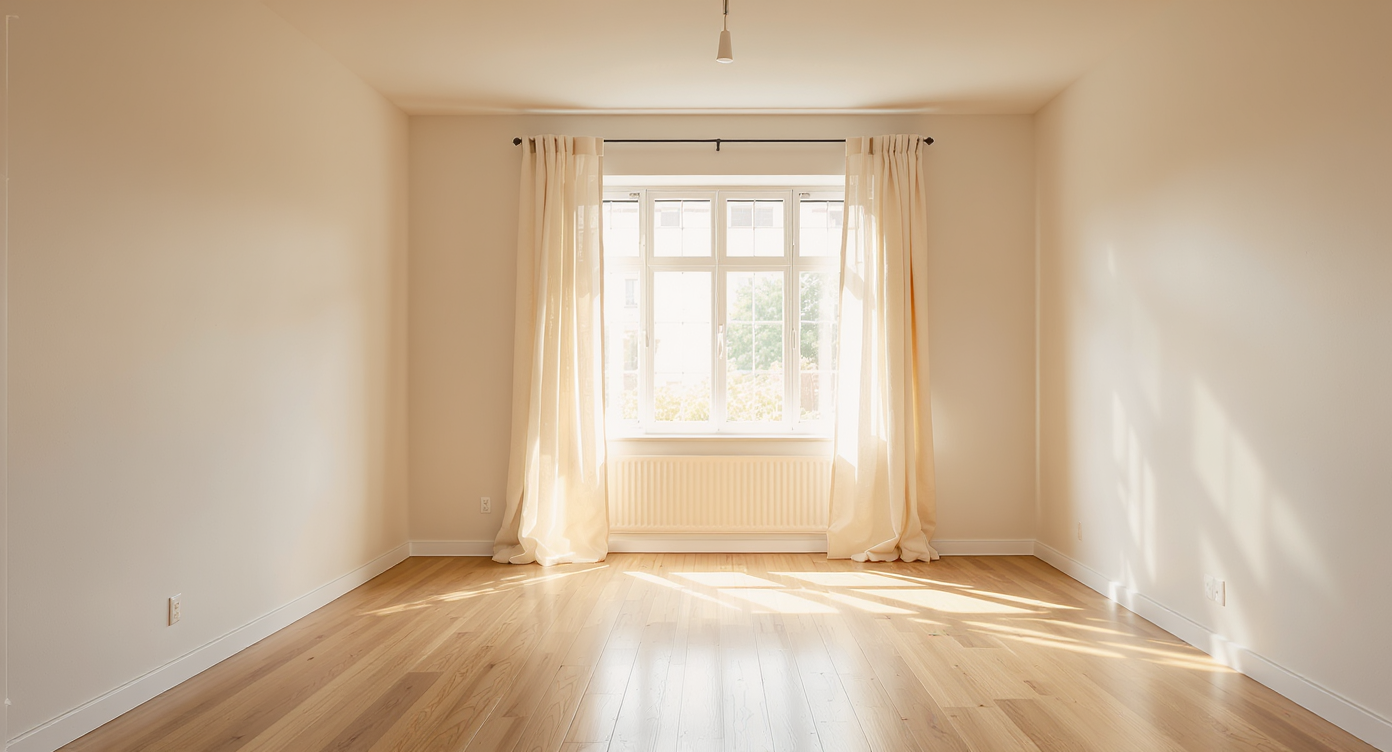
Preserving natural light and subtle shadows achieves the most believable vacant room effect.
Realism improves when you edit lightly, keep believable light behavior, and respect the bones of the home.
- Keep the character, remove the clutter: Preserve windows, floors, fireplaces, beams, and built-ins; only clear movable items.
- Let light lead: If a lamp was the key light, ensure the empty room still matches the existing daylight/shadow pattern.
- Mind material transitions: Watch baseboards, tile thresholds, and rug shadows — edges that look right convince the brain the rest is real.
- Leave a hint of life if appropriate: In some markets, an almost-empty room with a single plant or floor lamp feels more natural. You can selectively keep one item.
- Stay consistent across the carousel: If you clear the living room, consider clearing adjoining rooms so the tour feels coherent.
- Use AI re-staging for clarity, not fantasy: After clearing, use AI virtual staging to furnish plausibly — scale furniture to wall length and keep aisle widths 30–36 inches.
- Tidy the last distractions: If a few small objects remain, tap the clutter and object removal tool for precise cleanup.
Visualization Scenario
Picture two frames of the same living room: left is warm and eclectic with books and textiles; right is a serene, empty box showing long walls, big windows, and pristine floors. That’s what Occupied → Vacant delivers — choice and clarity.
FAQ
Can AI really remove furniture and clutter from a room photo cleanly?
Yes. Occupied to Vacant uses object detection and light-aware fill to remove items and rebuild believable floors, walls, and shadows. For stubborn details, you can fine-tune with the object removal tool.
Is it allowed to show digitally cleared rooms in real estate listings?
In many markets, yes — with clear disclosure and an unedited original available if requested. Always follow your local MLS rules and brokerage guidelines.
What resolution do I need to get good results with AI edits?
For best output, start with high-resolution images — ideally 2500–3000+ pixels on the long edge — with straight verticals and even light.
How is Occupied → Vacant different from basic clutter removal?
Clutter removal targets small items; Occupied → Vacant clears whole furnishings and decor to create a truly empty, listing-ready canvas.
Can I clear a room and then virtually stage it in another style?
Absolutely. After clearing, restyle with ReimagineHome.ai’s virtual staging solution to test Scandinavian minimal, modern, or warm neutral looks.
Visualize Your Next Listing (or Project) Before You Commit
Agents, sellers, and photographers often find that the biggest gains come from simplifying the story. If a space is brightly layered — patterned textiles, book-filled shelves, colorful chairs, sentimental art — you don’t need to erase the personality you love in real life. You just need a clean version for the listing that helps strangers understand the plan.
That’s the promise of Occupied → Vacant: a fast, low-risk way to rehearse your photos before you publish, and to give buyers a calm first read of the home. Try clearing one room today with ReimagineHome.ai’s Occupied to Vacant tool, or explore the rest of the platform at ReimagineHome.ai when you’re ready to re-stage or refine.