How to Use REimagineHome’s Inspiration Gallery: Bring Curated Looks to Your Own Room
TL;DR
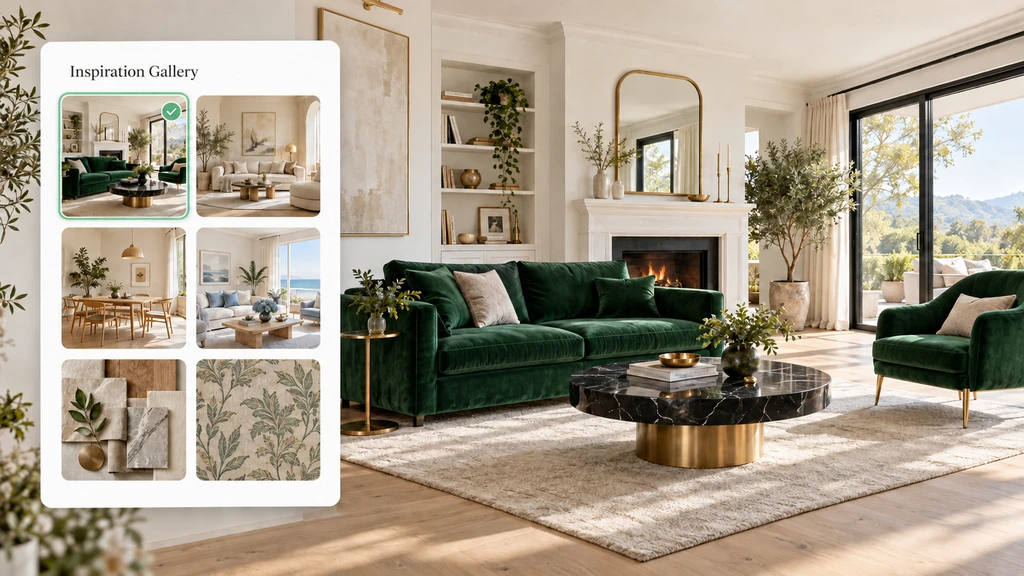
REimagineHome’s Inspiration Gallery lets you pick inspiring designs, moodboards, colors, or wallpapers and virtually apply them to your space. No need to hunt for your own reference image, just upload your room photo, pick gallery inspirations, and guide the AI to adapt what you love. Refine results, try new directions, and clarify design decisions—all starting with a single curated reference image.
Finding Inspiring Designs and Making Them Your Own
See how to use the inspiration gallery in REimagineHome—explore steps for designing rooms with reference photos, choosing moodboards and paint swatches for AI redesign, and tips for selecting multiple inspiration references to customize your own room’s style.
It’s easy to find jaw-dropping living rooms online, but it’s much harder to picture those looks working in your own home. REimagineHome’s Inspiration Gallery, a new part of the Reference Photos feature, solves this problem: you can now access a library of handpicked room designs, color palettes, and even wallpaper patterns, ready to guide a visual redesign of your actual space, no deep design knowledge or personal photo library needed.
Within minutes, you can upload a photo of your room, then select one or more gallery references for the AI to borrow from. The result is a true-to-life visualization of how a professional or on-trend design could look at home, tailored to the details you care about most. It’s the easiest way to go from “I like that style, but how would it work here?” to seeing a visual proposal mapped onto your real walls and flooring.
-
What Is the Inspiration Gallery and How Does It Help?
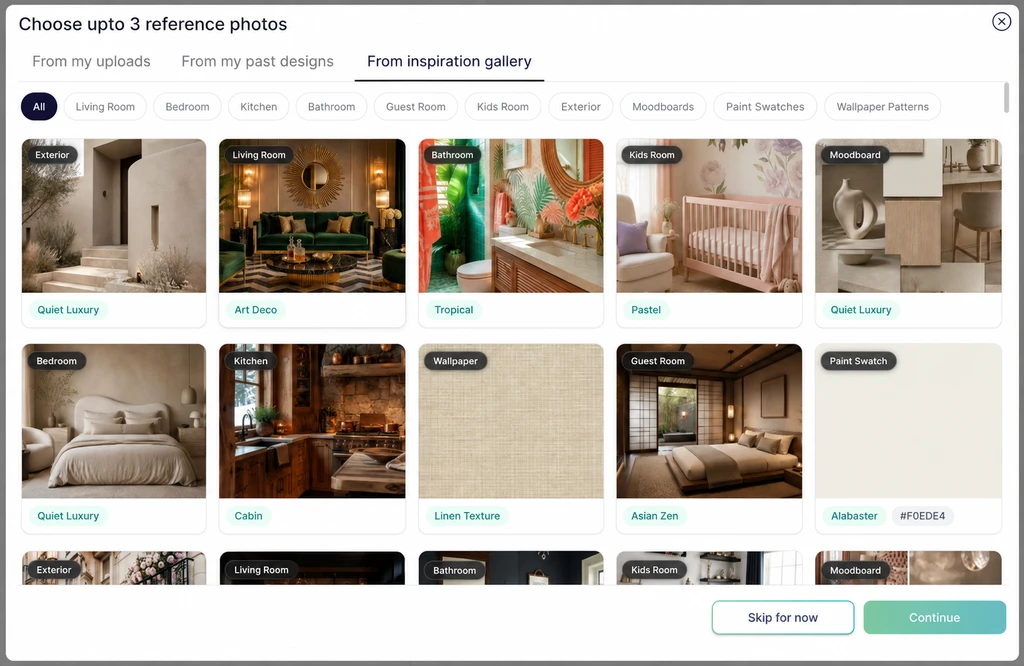
REimagineHome’s Inspiration Gallery brings curated design references into the Reference Photos feature.
The Inspiration Gallery is a built-in visual library inside REimagineHome’s Reference Photos tool. Instead of scrolling endlessly for Pinterest-worthy images to upload yourself, you can browse curated designs, themed moodboards, paint color swatches, and wallpaper patterns all in one place. Select a gallery image and it instantly becomes your design guide: the AI uses it to inform everything from color schemes and furniture styles to decorative details and lighting, while keeping the structure of your actual room intact.
This approach transforms the design process for anyone who has struggled to articulate what they want, isn’t sure how to communicate a look, or simply wants to experiment without overcommitting. As we explored in our breakdown of reference photo benefits, visual references align design intent and help the AI deliver more personal, relevant outcomes.
-
Exploring Styles, Palettes and Patterns, Directly in the Gallery

Explore room inspiration, moodboards, wallpaper patterns, and paint swatches to guide your AI room redesign.
The Inspiration Gallery covers a wide range of interior and exterior looks. You’ll find:
- Room photos: Living rooms, kitchens, bathrooms, bedrooms, and more.
- Exterior references: Façade ideas, landscaping, and curb appeal inspiration.
- Moodboards: Professionally coordinated palettes and material combinations.
- Paint swatches: Select color families for virtual paint tests.
- Wallpaper patterns: Experiment with textures or bold statement walls.
Each image is labeled with style tags, think "Art Deco," "Scandinavian," or "Bohemian" so you can explore new directions or find a close match to your taste. You might choose a complete design (like an emerald-and-gold living room), or just a single reference for color or material ideas. As highlighted in our explainer on selecting strong reference photo types, room photos, moodboards, and color palettes all serve targeted purposes for guiding results.
-
How to Put the Inspiration Gallery to Work in Your Design Process
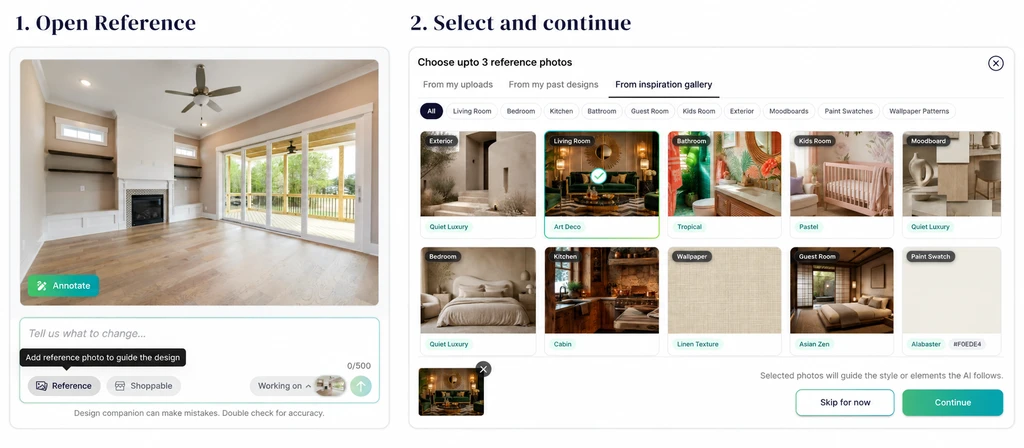
Open Reference, choose an inspiration image, and click Continue before describing the changes you want.
- Upload your room: Start by taking or uploading a clear photo of the room (or exterior) you want to visualize.
- Open Reference Photos: In the design chat, select Reference Photos and choose From inspiration gallery.
- Browse and select up to three gallery images: Filter by room type, style tag, or visual theme. For a focused redesign, one image may be enough.
- Describe what you like: In plain language, tell the AI what elements to borrow, colors, textures, furnishings, or just a vibe and what you want left untouched (like keeping your original flooring or layout).
- Review, compare, and refine: Examine the visual proposal, request adjustments, or try new combinations. You might ask for less gold, a lighter fabric, or a different table, making it easy to tweak details until you’re satisfied.
For detailed best practices, see our article on guiding AI redesigns with reference photos. The key is clarity: the more specific you are about which elements you want to bring over, the more you can control the outcome.
-
A Real Example: From Blank Room to Bold Art Deco

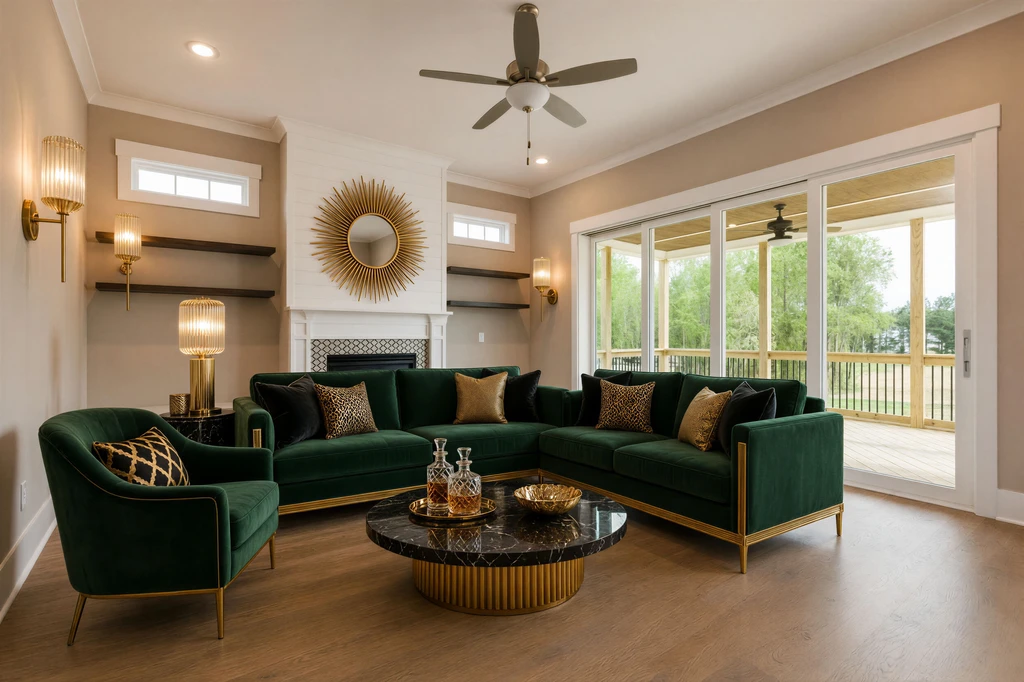
This REimagineHome example transforms an empty living room into an emerald-and-gold design using an Art Deco gallery reference.
Imagine starting with an empty living room, wood floors, a fireplace, built-in shelving, and sliding glass doors. Instead of a generic style request, the user browses the Inspiration Gallery and selects an Art Deco–themed reference: emerald velvet seating, brass accents, dark marble, and dramatic lighting.
The AI then visualizes your room transformed with these signature elements, deep green sofas, a round marble-look table, gold detailing, soft glowing light, and a distinct sunburst mirror over the fireplace. If the initial look feels too bold, you can immediately refine the design: request less seating, adjust the intensity of the gold, or focus only on the color palette, not the furniture shapes.
Instead of wrestling with abstract style names, you get a tangible design direction and something concrete to react to. This mirrors the approach in our guide to using reference photos: anchor your redesign in a visual you love, then tailor the result to fit your space and preferences.
-
Why Visual References Are So Effective for Room Design
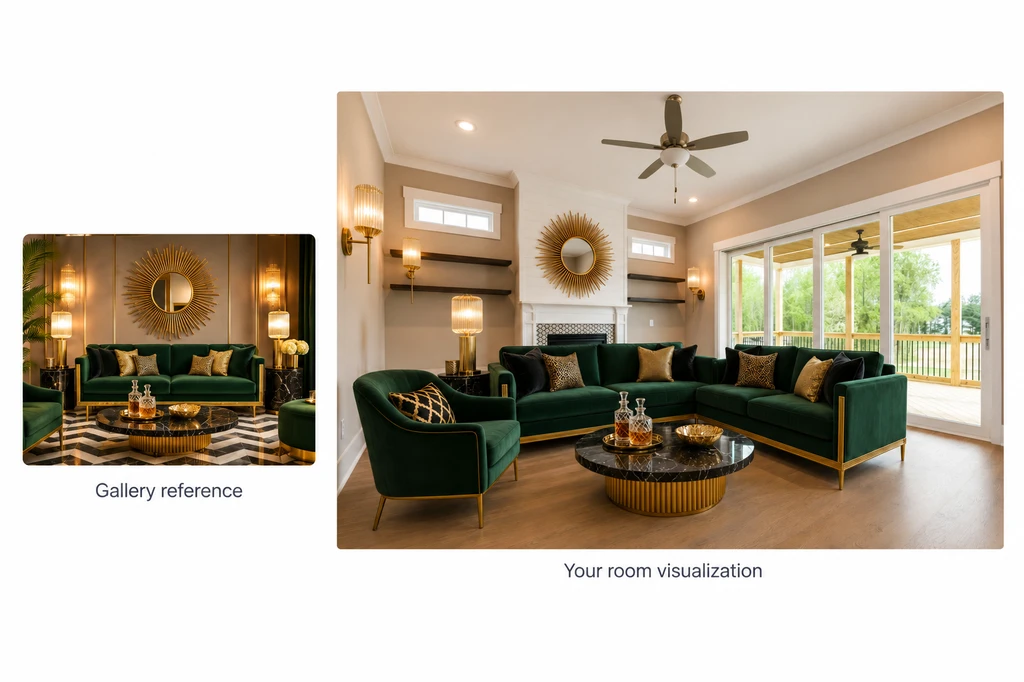
A visual reference helps communicate the colors, furniture styles, and decorative details you want to explore in your room.
Most people struggle to describe an interior style from scratch. Visual references bridge the gap between inspiration and action by providing a shared design language for you and the AI to work from. Whether you’re unsure which style direction suits your home, or you’re collaborating with a partner, it’s much easier to point to an image and explain what you like, as supported in our research on reference-driven redesigns.
Gallery references also shine when you want to mix-and-match: for example, borrowing a soft neutral palette from one image but keeping your current sofa style. The AI lets you clarify what matters most, so the results reflect your wishes, not just the reference image’s format. As we noted in our guide to photo selection, the more intentional your picks, the more confident you become in your design decisions.
-
Tips for Success and Common Questions
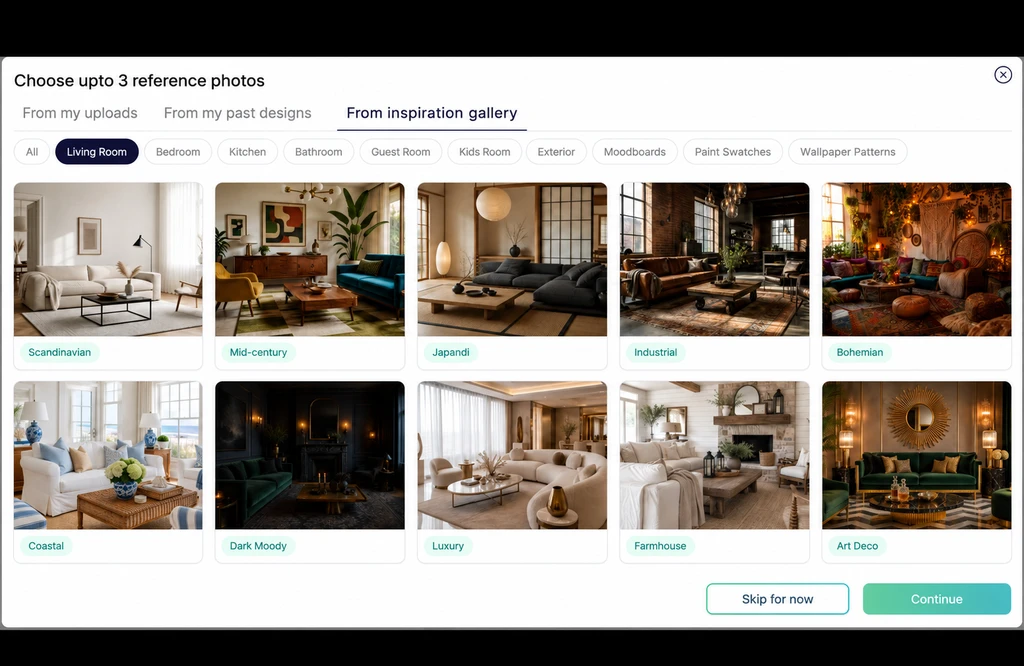
Select up to three reference photos and explain which elements you want REimagineHome to use from each.
- No inspiration photo of your own? No problem: The Gallery gives you professional references to start from, the only thing you need is a clear photo of your space.
- You can select up to three references at a time: If you blend them, explain what you want from each (e.g., color from one, fixtures from another). Make your brief specific.
- Your result isn’t a carbon copy: The AI adapts the reference to fit your room—not overlays it exactly. Review and request adjustments as needed.
- Refine for the best outcome: Tweak the virtual design (fewer accessories, brighter colors, different rug) until it feels right for your home.
Want in-depth advice? Read more in our step-by-step guide on using reference photos.
Frequently Asked Questions: Getting Started with the Inspiration Gallery
- Where do I find the Inspiration Gallery in REimagineHome?
- Open Reference Photos during a design session, then choose From inspiration gallery. It appears alongside your own uploads and past projects.
- Can I start without my own inspiration image?
- Yes! The Gallery supplies ready-to-use references, just upload a photo of your room for context.
- How many reference photos can I use?
- You can select up to three gallery images at once. Describe what to borrow from each for best results.
- Will my redesign exactly match the reference image?
- No—the AI adapts the reference to your room. Review and refine the visualization to fine-tune the details.