Why Does My 3D Room Look Different From My Photos? What to Check in Chez
TL;DR
If your Chez 3D room model looks unexpectedly different from your photos, first compare room shape, doors, windows, and key features in both views. Chez estimates dimensions based on your images and deduces any details not shown. Pinpoint any mismatch, check your photo coverage, and always measure critical areas before making decisions that depend on accuracy.
-
Why Your 3D Room Might Look Different Than Photos
Start with architectural differences that affect your plans.
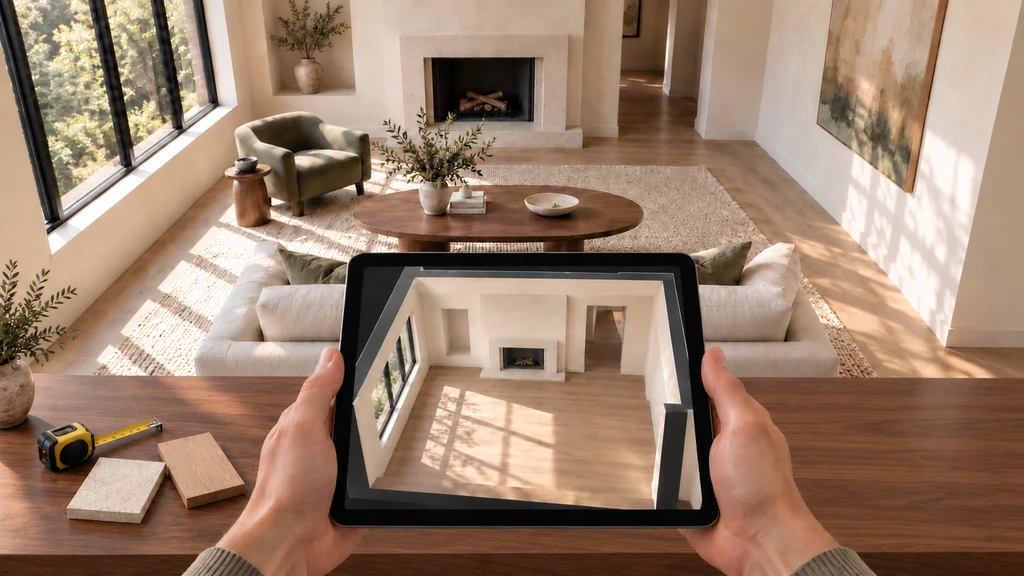
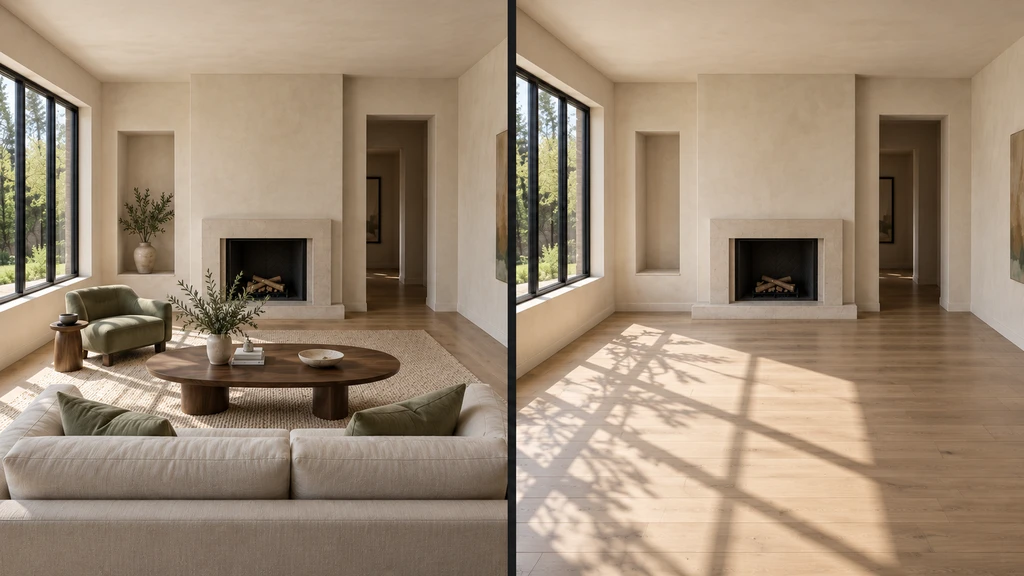
You upload your photos to Chez by ReimagineHome and see your own room brought to life in 3D. But something feels off, maybe a window looks wider, or a doorway seems further from the corner. Before you pick out new paint or furniture, it's worth understanding what’s happening. Chez creates 3D models by estimating room dimensions from photographs, making its best guess about areas the camera didn’t capture. As described in our guide on photo-to-3D interior design, this technology bridges the gap between a static image and a spatial experience, but isn’t always a perfect digital twin. Small mismatches are normal and often signal it’s time to compare specific details in both the images and model.
-
Start by Identifying the Difference
Pinpoint the feature that looks different.
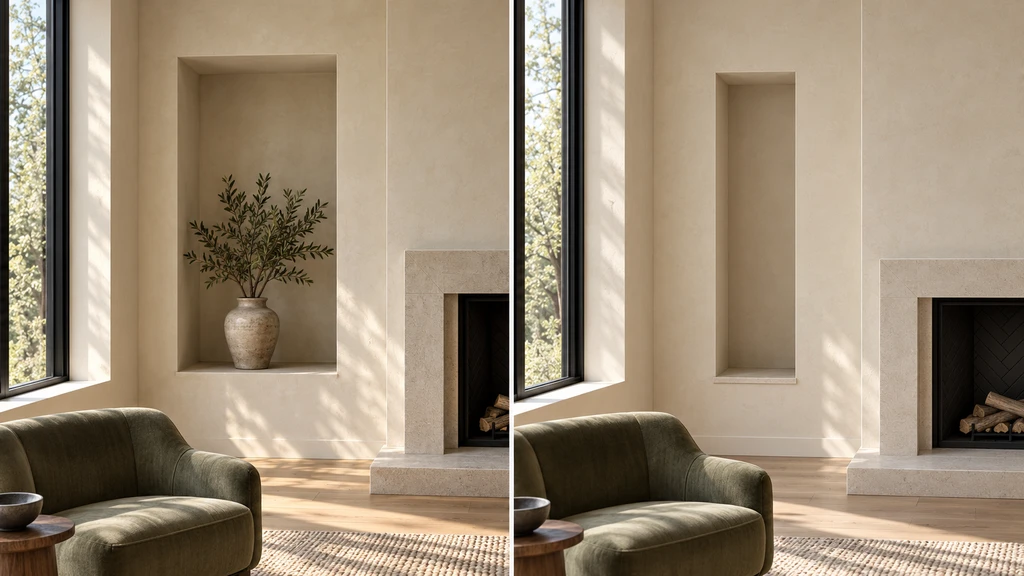
General impressions like "the room feels off" aren’t helpful for troubleshooting. Instead, look for a specific difference that stands out, perhaps "the space between the window and wall feels bigger in the model." Place your original photographs beside the 3D view in Chez, and compare them from similar angles. This often quickly reveals whether a mismatch comes from room shape, a feature’s location, or just the viewpoint. As highlighted in our introduction to Chez, the platform offers floor plan, wall elevation, and walk-through views for more granular comparisons.
-
How Chez Builds Your Model And What That Means for Accuracy
Overlapping photographs reveal more of your room.
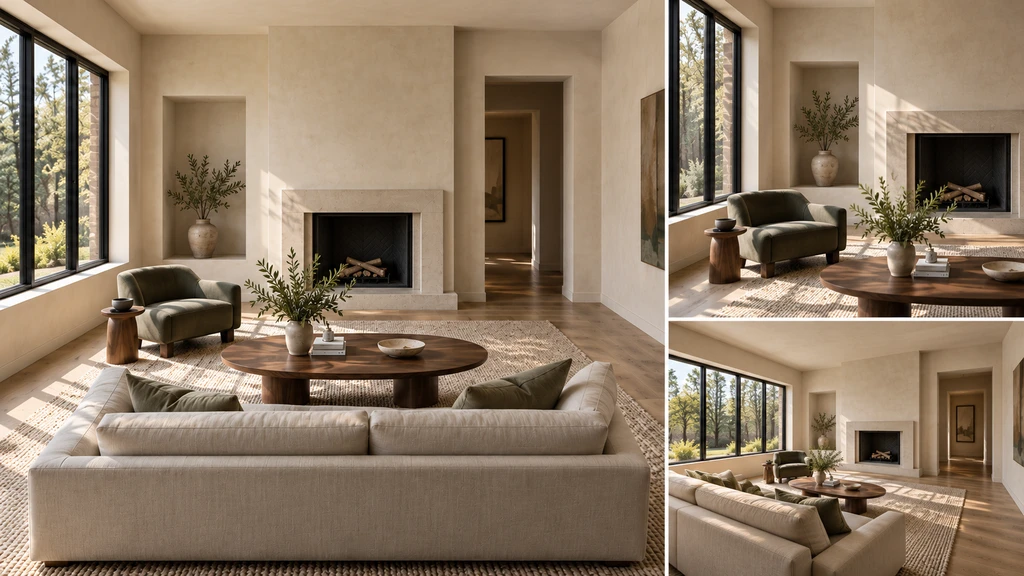
A single photo can only show part of a room. Overlapping photos add detail, but some features, like an alcove hidden behind a cabinet, may not be visible. Chez estimates dimensions and infers unseen portions using the information provided, so areas not well-covered by your photos may differ in the model. According to our step-by-step guide to creating a 3D room, overlapping images from a range of corners at chest height give the most complete result. AI-generated images and 360° panoramas aren’t supported, so stick to crisp, well-lit real photographs.
-
Review Architecture and Fixed Features First
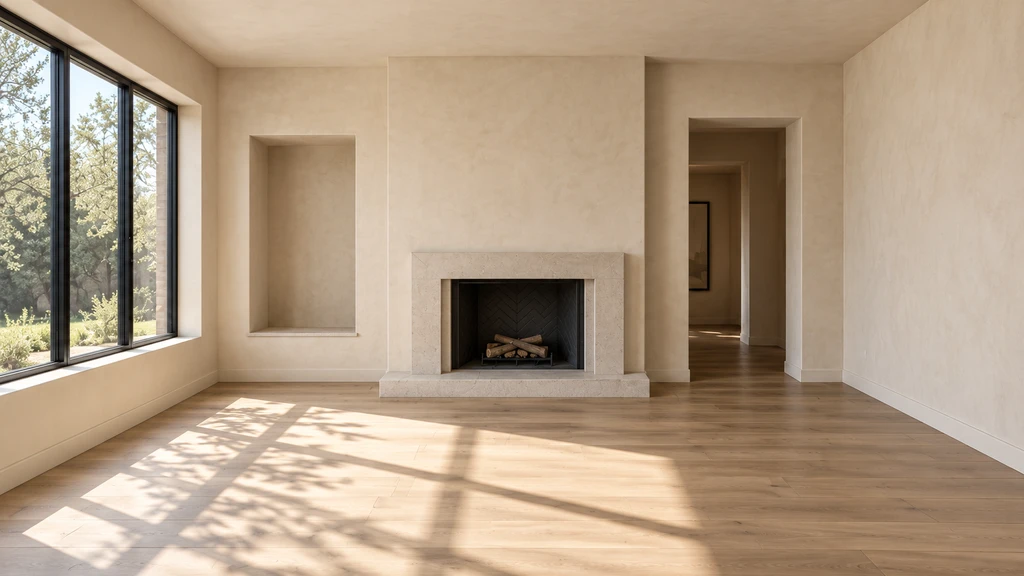
Review walls, openings, and fixed features first.
Start your review from a familiar spot, such as next to a notable window or main entry. Use Chez’s floor plan and elevation views to trace one wall at a time—note wall turns, recesses, doors, and windows. Are all features present, and in the right sequence? Compare the placement of any built-in storage, columns, fireplaces, or platforms that impact your next design decision. Floor and ceiling intersections, changes of height, and transitions to other areas may also reveal mismatches. Make use of multiple view modes; agreement between these in Chez confirms the model’s internal consistency, not necessarily real-world measurement.
-
Revisit Your Photo Set When a Mismatch Appears
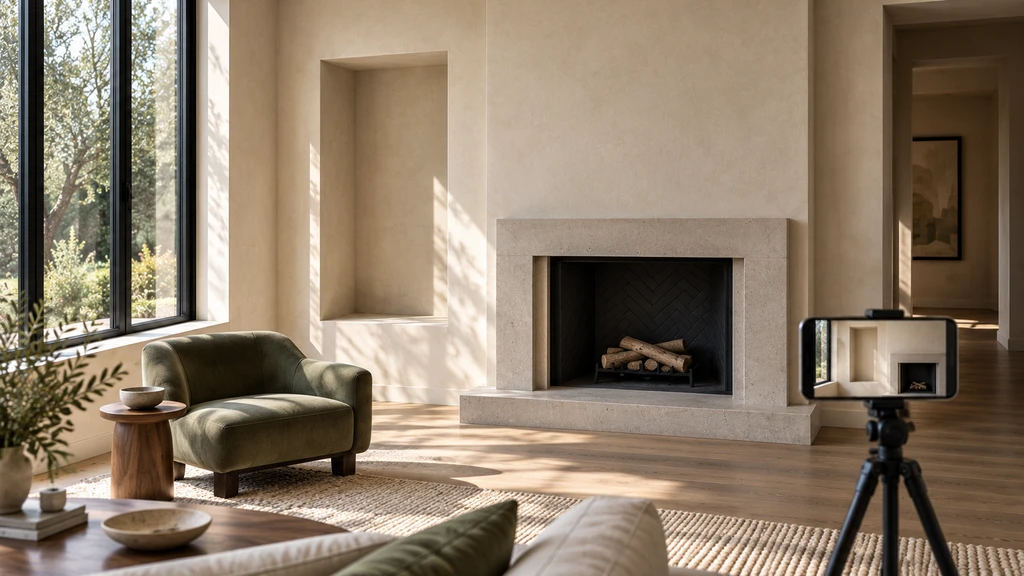
Capture a targeted photo of unclear architectural details.
When you notice that a feature doesn’t look right in 3D, check whether your photos actually showed it clearly. If an alcove seems too shallow, did any photo capture both its sides and edge details? Overlapping photos from different positions help, especially if they reveal hidden corners or details. If your crucial feature is still absent, plan a targeted new photo showing the missing angle and a wide enough view to place it accurately within the room.
-
Which Details to Double-Check—And Why
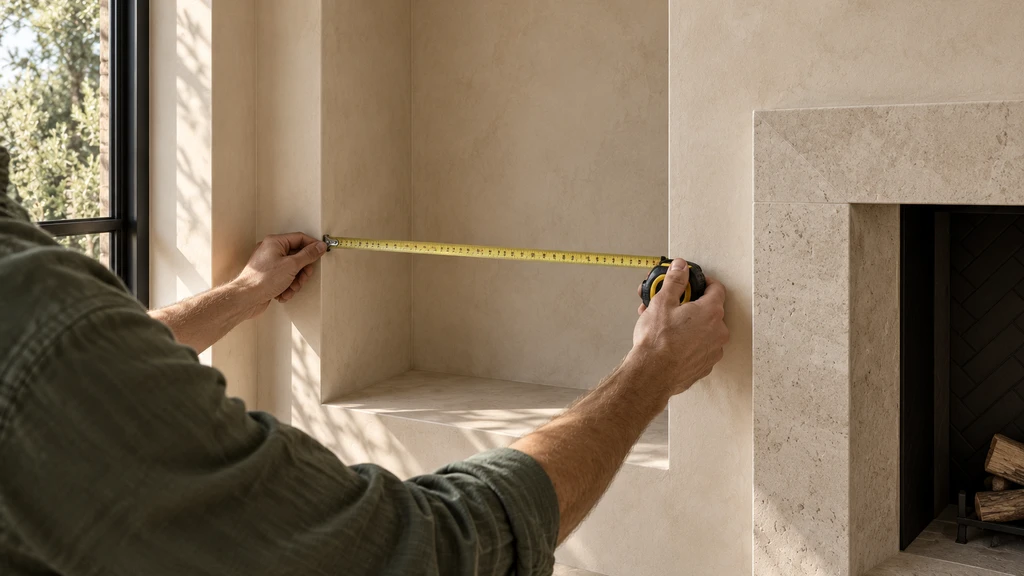
Measure critical dimensions before committing.
Not every discrepancy matters equally. Think about the change you want to make—if you’re painting, surface details matter little compared to a wall’s size. If you plan to install shelving in an alcove, its precise width and depth are essential. For all critical fit or placement decisions, measure your actual space and consult your product’s requirements before committing.
-
Keep a Record for Complex Mismatches
If you spot a persistent error, note it down before moving forward. Capture a screenshot of the issue in Chez, pair it with the relevant photo, and write a short description (e.g., "The niche next to the fireplace appears nine inches narrower in the 3D model"). Add your real measurement if it affects a purchase or installation. This record will be valuable if you need support or want to check future updates.
-
Review—Then Make Your Best Next Move
Ultimately, the model in Chez is a powerful tool for spatial exploration—use it to preview designs, review options, and eliminate uncertainty before making permanent changes. For any decision that hinges on fine tolerances, always take real physical measurements to supplement your 3D review. Ready to give your room a closer look? Explore 3D planning with Chez by ReimagineHome here.
Frequently Asked Questions
- Why doesn't my Chez 3D room match my photos exactly?
Chez estimates room dimensions from your photos and infers missing details; check your model against the photos to identify mismatches and review coverage before making design decisions. Read more about the process in our photo-to-3D interior design guide. - How many photos should I upload to Chez?
Upload at least two, but four to eight overlapping photos of the same room are ideal for coverage. Follow the tips in our step-by-step setup guide. - Can I use Chez’s dimensions to buy furniture?
Use Chez for planning and arrangement, but always measure the intended space in person and confirm with manufacturer specs before purchasing. - Will uploading more photos fix every mismatch?
Additional coverage helps, but the accuracy of less-visible features depends on the clarity and angles of your images. - What features should I check first in a Chez-generated room?
Focus on the room outline, openings, and fixed architectural elements before comparing furniture arrangements or wall finishes.