
TL;DR
Add Anything is an AI interior design from photo workflow that lets you drop realistic furniture, lighting, plants, and decor into your room images in minutes. It’s ideal for first-time homeowners and anyone facing expensive, slow-to-arrive furniture decisions. Try it now: upload a photo to ReimagineHome.ai and see options before you spend. You’ll avoid scale mistakes, protect your view lines, and plan a shopping list with fewer returns.
Why Decorating From Empty Rooms Leads to Costly Guesswork
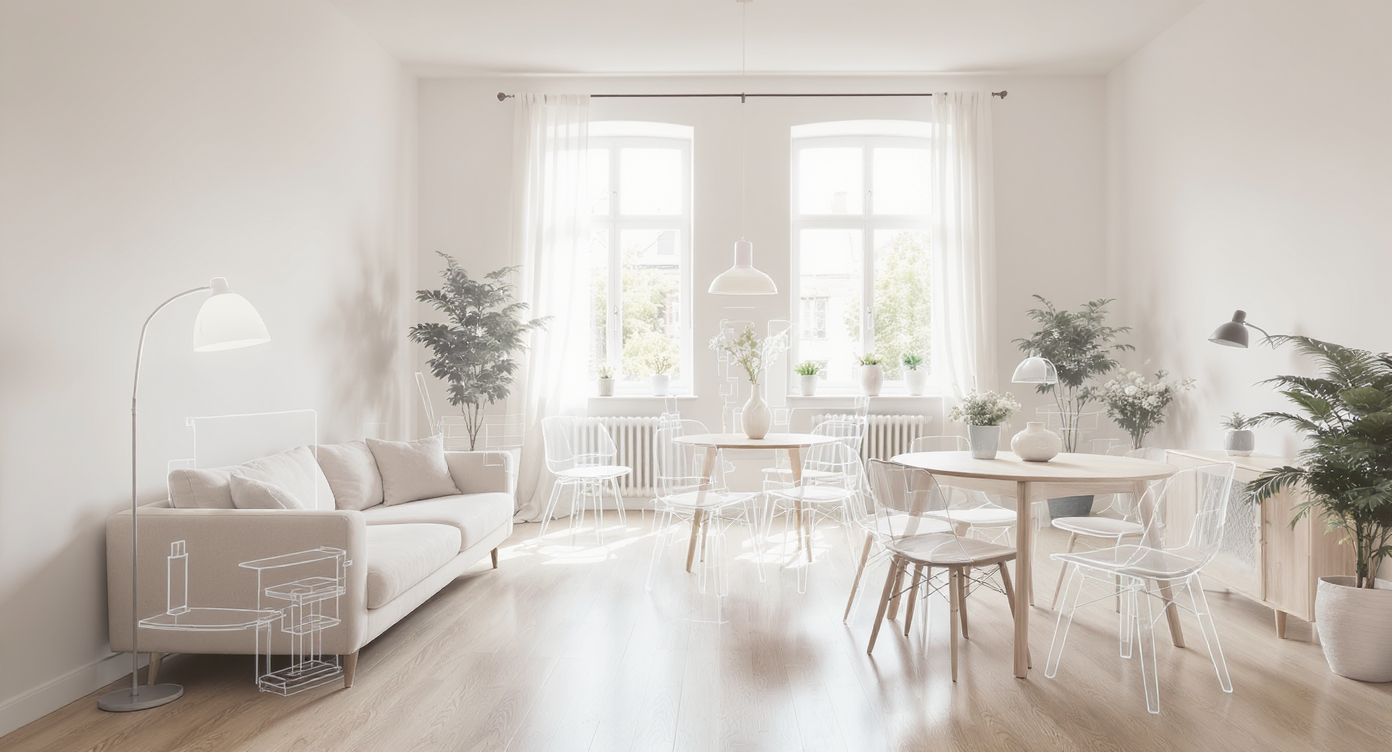
Add Anything lets you preview sofas, tables, and decor in your actual room photo easily.
Add Anything is ReimagineHome.ai’s way to place realistic furniture and decor into your room photo so you can test styles and layouts before you buy. It matters because empty rooms, especially with big windows and views, make it hard to judge scale and flow — and that’s how expensive mistakes happen.
- Results: See a photoreal, fully furnished concept of your actual space — sofa depth, dining table size, clearance to doors and sliders — in minutes.
- Realism: AI respects light, shadows, and perspective so pieces look native to the photo, not pasted on.
- Speed: Generate multiple layouts and styles fast — great when shipments take weeks.
- Cost: Avoid mis-sized purchases and costly returns; prioritize a buy list that fits.
- Workflow: Snap a phone photo, upload, describe what to add, iterate, export.
- ROI: Better scale decisions protect the view, circulation, and resale sensibility.
- Peace of mind: You’ll know it works visually before you spend a cent.
If you already have an empty room or balcony in mind, upload it to ReimagineHome.ai and test this solution on a real image while you read.
Why This Visual Problem Hurts More Than You Think
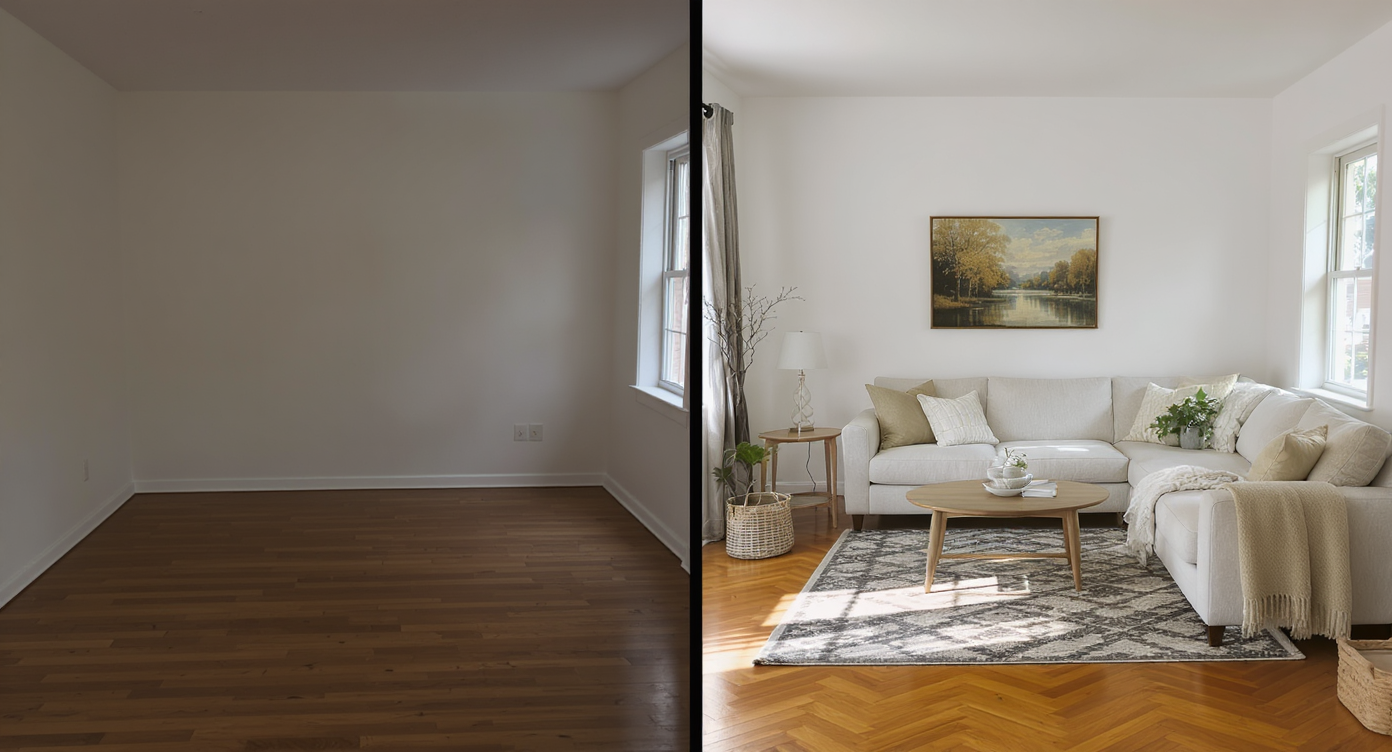
Empty rooms often feel smaller and less welcoming than when thoughtfully furnished and staged.
Empty or poorly furnished rooms often feel smaller and less inviting on screen than thoughtfully staged ones. That’s not just a listing problem — it’s a decorating problem. In real life, a 100-inch sofa that looked fine on a product page can crowd a slider door, block a million-dollar view, or force an awkward TV angle. And in markets where furniture is pricey and deliveries take time, one wrong buy can stall the whole home setup.
Here’s how it shows up day to day:
- Scroll behavior: You pin inspiration shots but can’t map them to your room’s exact window placements, ceiling height, or traffic paths.
- Buyer’s remorse: Returns are a headache, and restocking fees plus transport can erase any savings.
- Confidence tax: You delay decisions, live with boxes, and end up compromising because the first large piece doesn’t actually fit.
One of the most common early regrets? Choosing furniture that competes with the view. Low-profile, narrow-depth seating often wins in glassy living rooms — but that’s easier to prove when you can preview it in your own photo.
Anecdote
That perfect-but-empty living room with jaw-dropping water views looked huge until a too-deep sectional arrived — suddenly the slider felt blocked and the view was chopped. Add Anything would have shown a lower, slimmer sofa and a clear sightline before any boxes were opened.
What Add Anything Actually Is (In Plain Language)
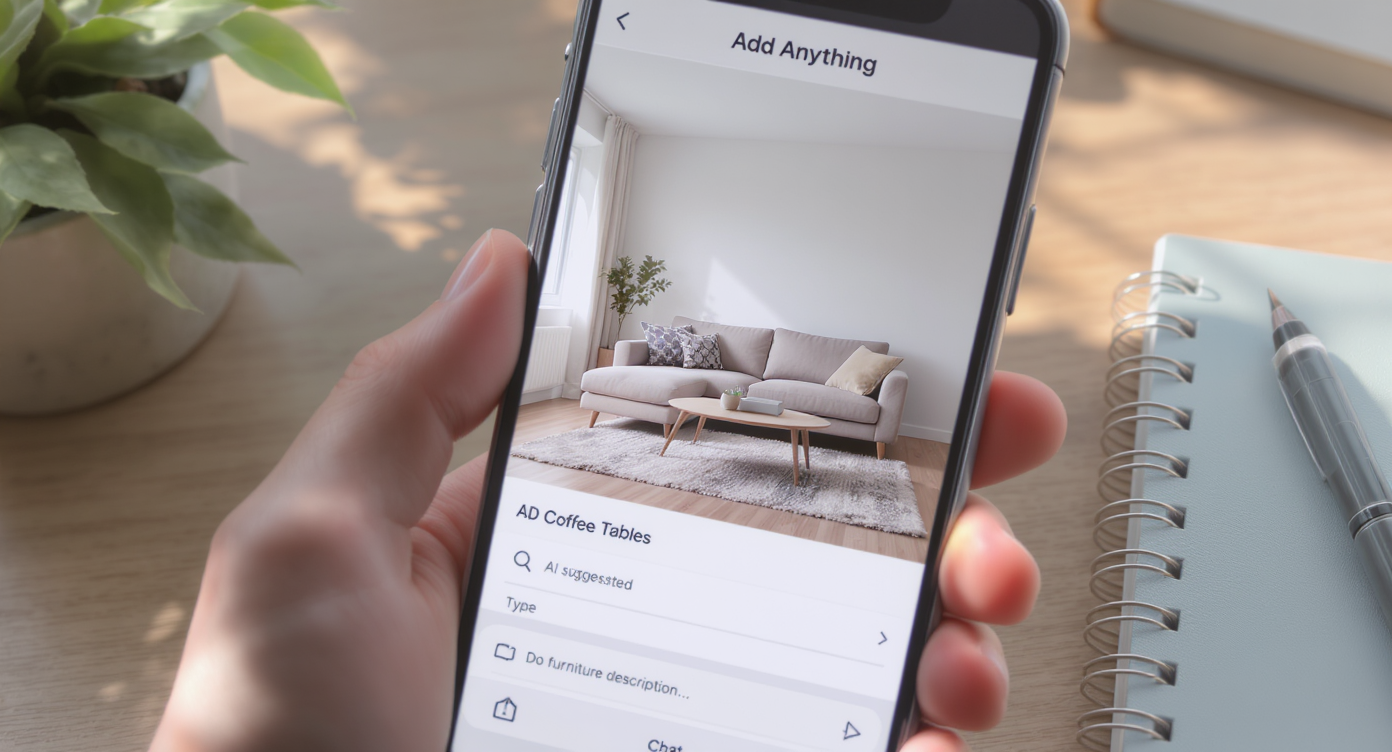
Add Anything uses AI to let you place furniture and decor virtually in your room photo instantly.
Add Anything is an AI room decorator that lets you place furniture, fixtures, plants, art, and lighting into your existing room photo to plan a layout. You provide a single image — empty or partly furnished — and get realistic concepts that respect perspective, scale, and light.
It’s built into ReimagineHome.ai’s toolset and designed for quick, practical decisions. When you want to visualize a modular sofa, a round dining table vs. rectangular, or a slim console by the slider, you can do it instantly. Explore it here: ReimagineHome.ai’s Add Anything tool for furniture and decor.
Inputs: a clear photo (ideally at least 2000 px on the long edge) with visible floor and key architectural lines. Outputs: downloadable images showing several furniture combinations you can refine and compare.
How Add Anything Works Step by Step
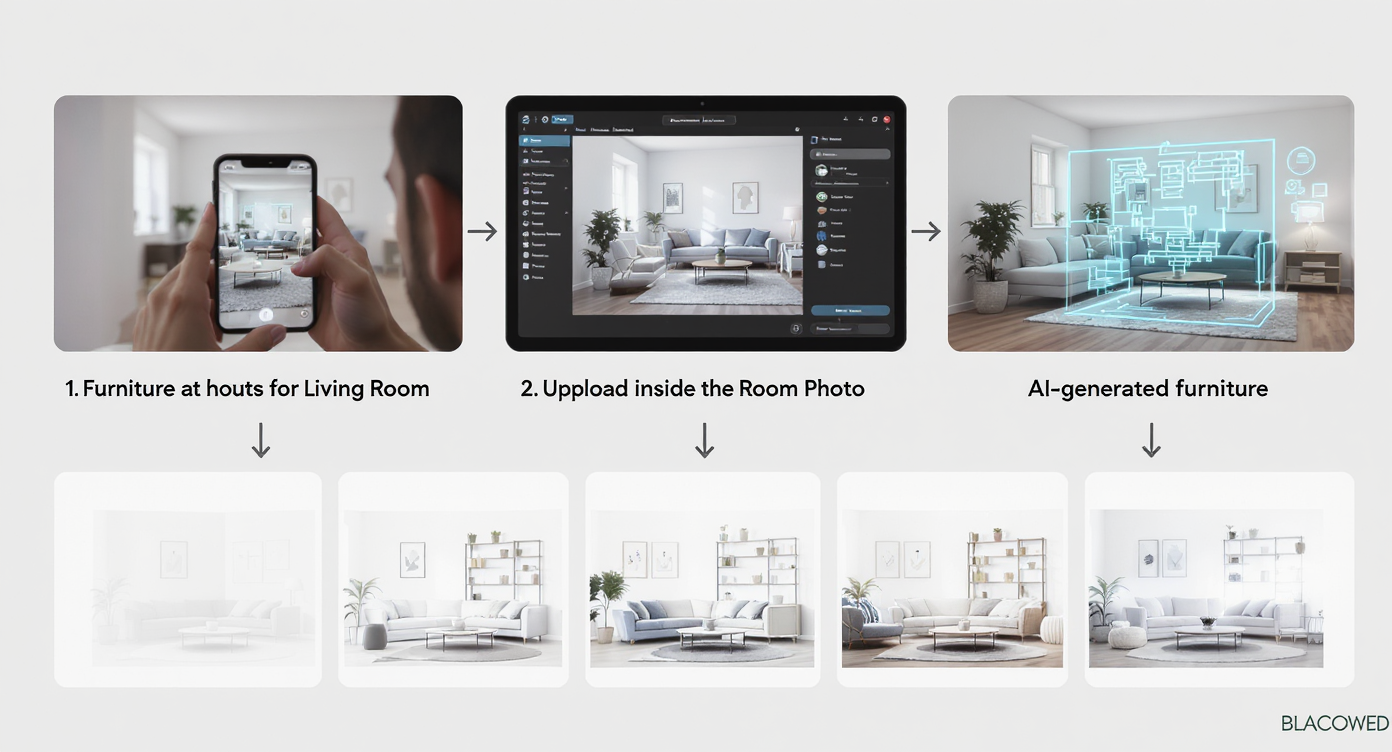
How Add Anything works: snap, upload, generate AI furniture, and preview multiple layouts fast.
Good results start with a good source photo and clear direction.
- 1) Choose the right photo: Stand roughly chest height, keep verticals straight, and include the floor and any doors, windows, or balcony thresholds you need to clear.
- 2) Upload to ReimagineHome.ai: Drag your image into the interface.
- 3) Select the tool: Pick Add Anything, then describe what you want — e.g., “low-profile 3-seat sofa, 90–95 inches wide, light warm fabric; slim coffee table; woven rug; keep view lines clear.”
- 4) Configure style cues: Mention style (modern coastal, minimalist, Scandinavian), materials (light oak, linen, boucle), and constraints (“no piece taller than sill height,” “max 34-inch depth”).
- 5) Generate and iterate: Review options, ask for a second angle or swap items. Try a sectional vs. a straight sofa, round vs. rectangular dining, or a compact bistro set on the balcony.
- 6) Export: Download your favorite concept for your shopping trip or to align with a partner.
Pro tip: If your walls or floors aren’t the tone you want, preview finishes first using ReimagineHome.ai’s Surface Restyling to test paint and flooring colors, then layer furniture on top.
Tips and Tricks for More Realistic Results

Use clear photos and detailed descriptions for more realistic AI furniture previews and better space planning.
Previewing renovation or color changes visually can prevent costly “measure once, regret forever” purchases.
- Protect the view: In rooms with glass sliders or ocean outlooks, prioritize low-back seating and open-base tables. Prompt the AI to keep furniture below sill height and out of sightlines.
- Mind depth and clearance: Many sectionals run 38–42 inches deep; small spaces often benefit from 32–35 inches. Ask the AI to honor a maximum depth and 36-inch walkways.
- Light, not heavy: Coastal or rainy climates feel brighter with light woods, textured neutrals, and fewer tall pieces. Specify materials like oak, ash, rattan, and pale linens.
- Rug anchors scale: A 9×12 rug under front sofa legs visually expands space and keeps furniture proportional. Tell the AI the rug size you’re targeting.
- Balcony finesse: For tight outdoor areas, test a foldable bistro set, stacking chairs, or a narrow bench. Ask for weather-safe materials (powder-coated aluminum, teak).
- Test zones: Have the AI try two space plans — sofa facing view vs. perpendicular — and compare TV placement that doesn’t glare against glass.
- Polish the base image: If your original photo is dark, run ReimagineHome.ai’s Image Enhancement first for truer light and color.
For more small-effort, big-impact ideas, see this guide on smarter, low-maintenance upgrades: chore-proof interior design upgrades.
Visualization Scenario
Upload a wide shot of your living room facing the glass doors. Ask Add Anything for a 90–95-inch low-back sofa in warm linen, a 9×12 woven rug, a slim oak coffee table, and a left-side reading lamp. Then generate a second plan with a compact sectional to compare depth and walkway clearance.
FAQ
How do I add furniture to a room photo with AI?
Upload your image to ReimagineHome.ai’s Add Anything tool, describe the pieces, size limits, and style, then generate options. Iterate until proportions and flow feel right.
Is AI interior design from a photo realistic enough to trust?
Yes. When your source photo is clear and straight, the AI respects perspective, light, and scale so results look native to the room. It’s a fast reality check before buying.
What resolution do I need to get good results?
Aim for at least 2000–3000 pixels on the long edge with the floor and key walls visible. Higher resolution improves fine details like fabric texture and shadows.
Can I use Add Anything if my room already has furniture?
Yes. You can add complementary pieces or test replacements. If you need a blank canvas first, clear items digitally, then furnish; ReimagineHome.ai also offers clutter and object removal.
Will these images work for real estate listings?
Many markets allow digitally edited images if edits are clearly disclosed and plausible. Use realistic layouts and materials, and follow your local rules and broker guidance.
Visualize Your Next Room Before You Commit
Seeing furniture in your exact room photo turns a vague mood board into a confident plan. Whether you’re outfitting a view-forward living room, a guest room that might double as an office, or a compact balcony, AI furnishing gives you the freedom to experiment without the cost.
Ready to design smarter, not harder? Explore Add Anything in ReimagineHome.ai or start from the homepage at ReimagineHome.ai and visualize your space before you commit.