
TL;DR
Exterior render uses AI to preview new exterior paint colors, trim/shutter combos, and curb appeal updates from a single photo — a fast way to test fixes when a white looks too bright or the contrast feels harsh. If you’re searching how to preview exterior paint with AI, this is the practical route. If you already have a photo, upload it to ReimagineHome.ai and try a few calmer palettes while you read.
The Real Cost of Guessing Exterior Colors
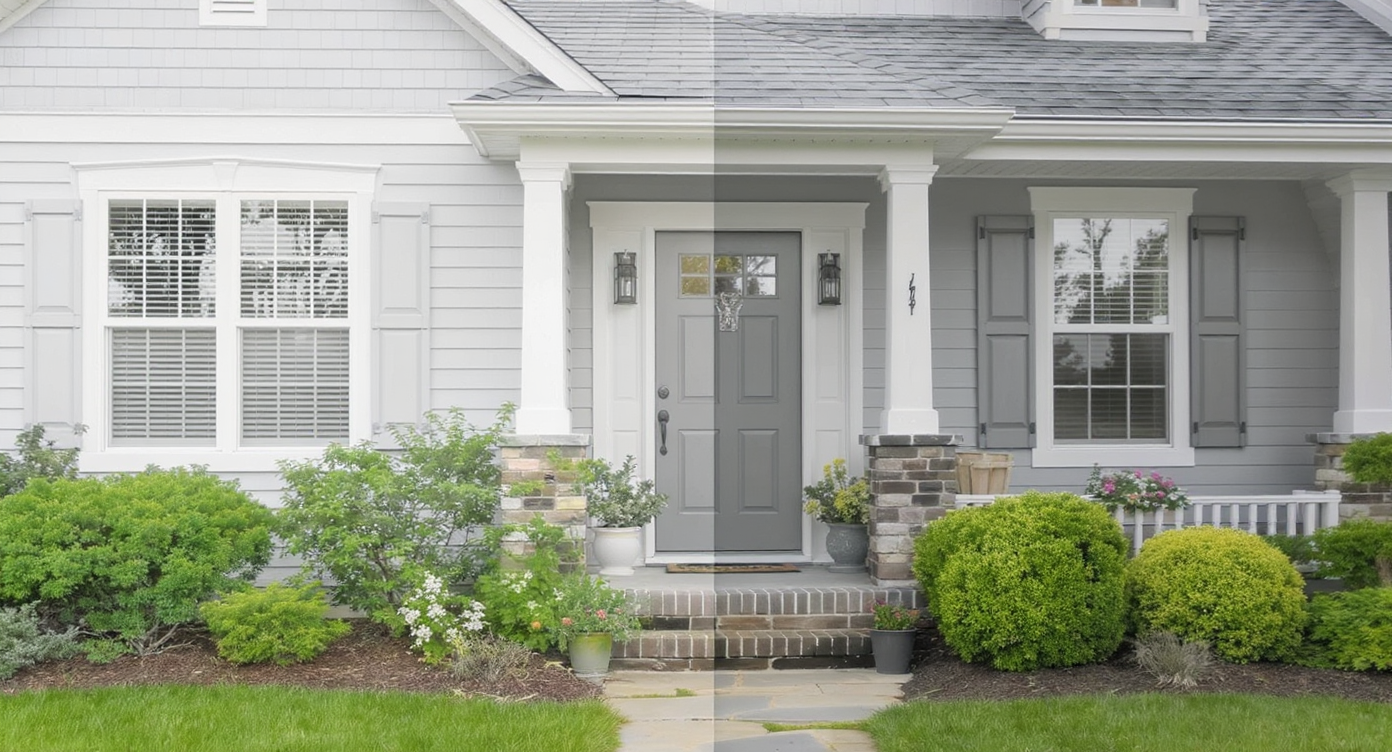
Experiment with exterior paint palettes digitally to find harmonious colors without repainting.
Exterior render is a simple way to preview new house colors on your real facade using AI, so you can test softer whites, warmer trims, and different door or shutter colors without repainting. It matters because curb appeal decisions happen fast on-screen and in person — and a too-bright white or high-contrast trim can make a home feel stark instead of welcoming.
- Results: See calmer whites, mid-tone trims, and accent doors that harmonize with stone/brick in minutes.
- Realism: Photo-accurate previews based on your actual facade and lighting.
- Speed: Try multiple palettes in one session; compare and pick confidently.
- Cost: Explore fixes digitally before buying more paint or hiring painters again.
- Workflow: Upload a straight-on photo, choose styles, generate options, refine.
- ROI: Better curb appeal translates to stronger first impressions and more confident decisions.
- Peace of mind: Make the next move (paint, shutters, landscaping) with zero guesswork.
If you already have a tricky exterior photo, upload it to ReimagineHome.ai and test a softer scheme while you read.
Why This Visual Problem Hurts More Than You Think
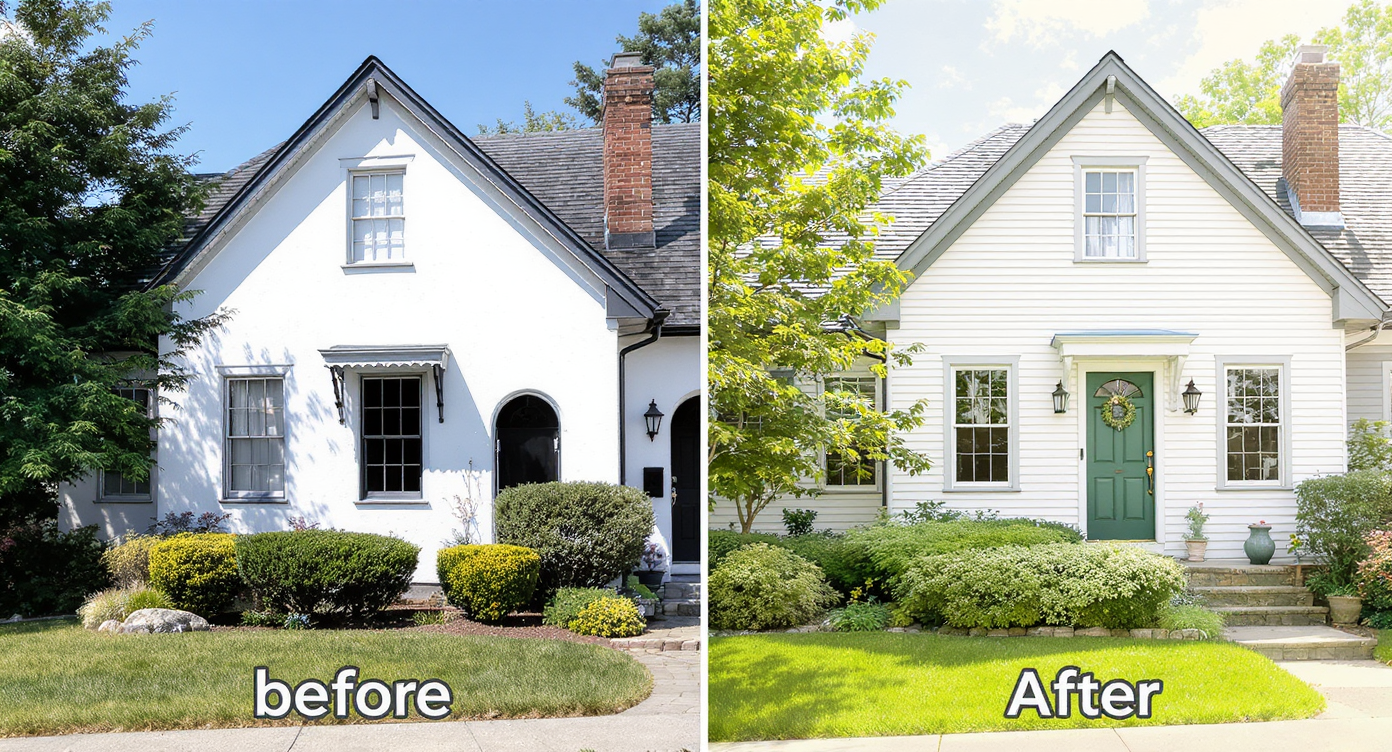
How too-bright exterior paint and strong contrast can negatively impact curb appeal and first impressions.
First impressions form in seconds — exterior photos and drive-bys heavily influence whether someone feels at ease or on edge. When a white reads blinding at midday or a dark brown trim clashes with a light body, the home can feel louder than intended, and that discomfort shows up in quick scrolls past a listing, hesitancy to schedule showings, or a homeowner’s lingering regret.
In real life, this looks like: kids saying the new white feels “too bright,” you avoiding the front walk at noon, or neighbors politely asking what brand you used. None of this means the house is ruined; it means the palette needs tuning — usually by softening the white, reducing contrast, or shifting undertones to align with the stone and roof.
The good news: you don’t need to repaint blindly. Exterior render lets you try warm whites, lighter trims, and complementary shutter/door colors until the whole elevation reads cohesive. It’s the quickest way to get from “assault on the senses” to “calm and classic.”
Anecdote
That perfect-but-too-bright repaint where the kids squint at the driveway and you feel a little regret every time you pull in — until you test a softer white with mid-tone trim and realize it’s a 2-click fix before anyone touches a ladder.
What Exterior Render Actually Is (In Plain Language)
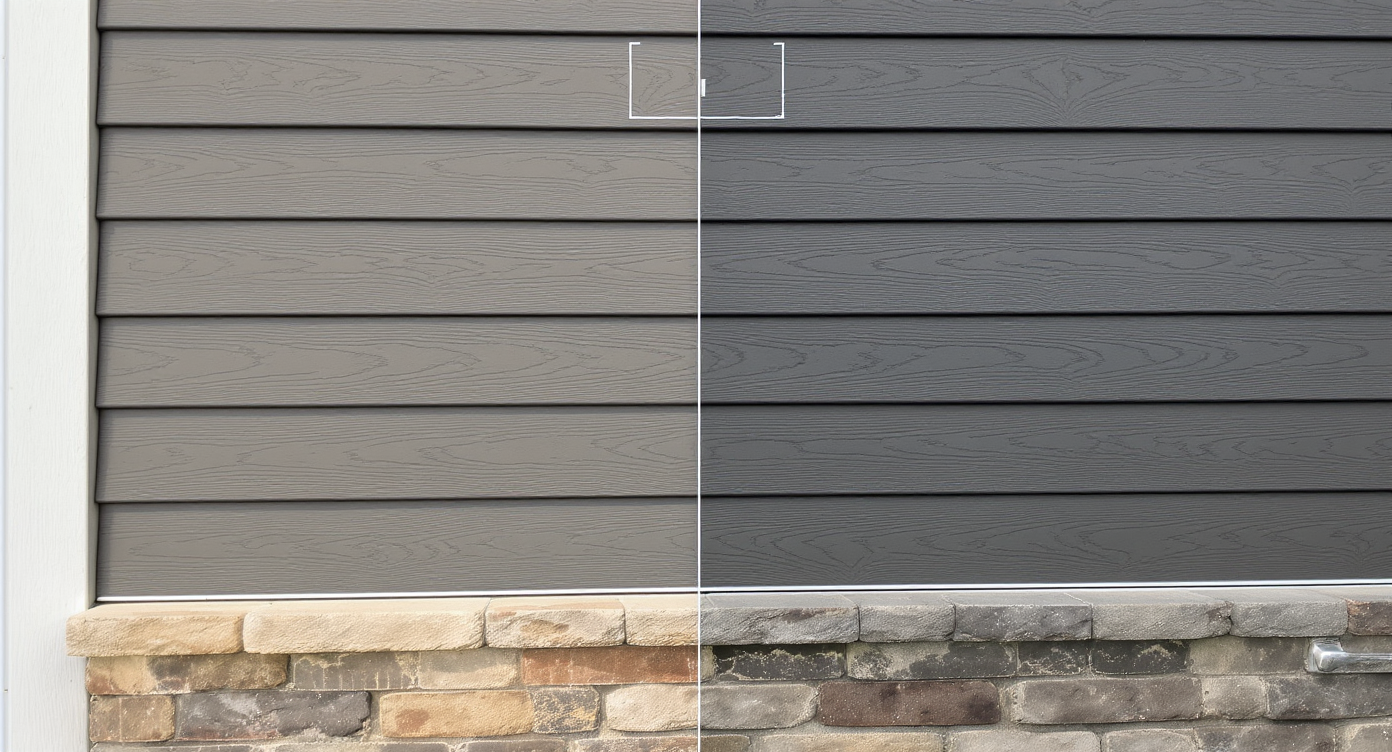
AI exterior rendering digitally restyles distinct materials on your home from a single photo for realistic previews.
Exterior render is an AI exterior design preview that restyles your facade from a single photo, showing new paint colors, trim/shutter options, and even curb appeal tweaks before you touch a brush. You upload a photo of your home; the tool applies your chosen colors and styles to the actual siding, trim, and details so you can compare multiple looks side by side.
To try it on your own home, open ReimagineHome.ai’s Exterior Render for facades. It’s designed for quick what-if testing: from “off-white body with taupe trim” to “sage shutters with a wood-tone door,” you can iterate toward a scheme that feels right in your light and with your materials.
How Exterior Render Works Step by Step
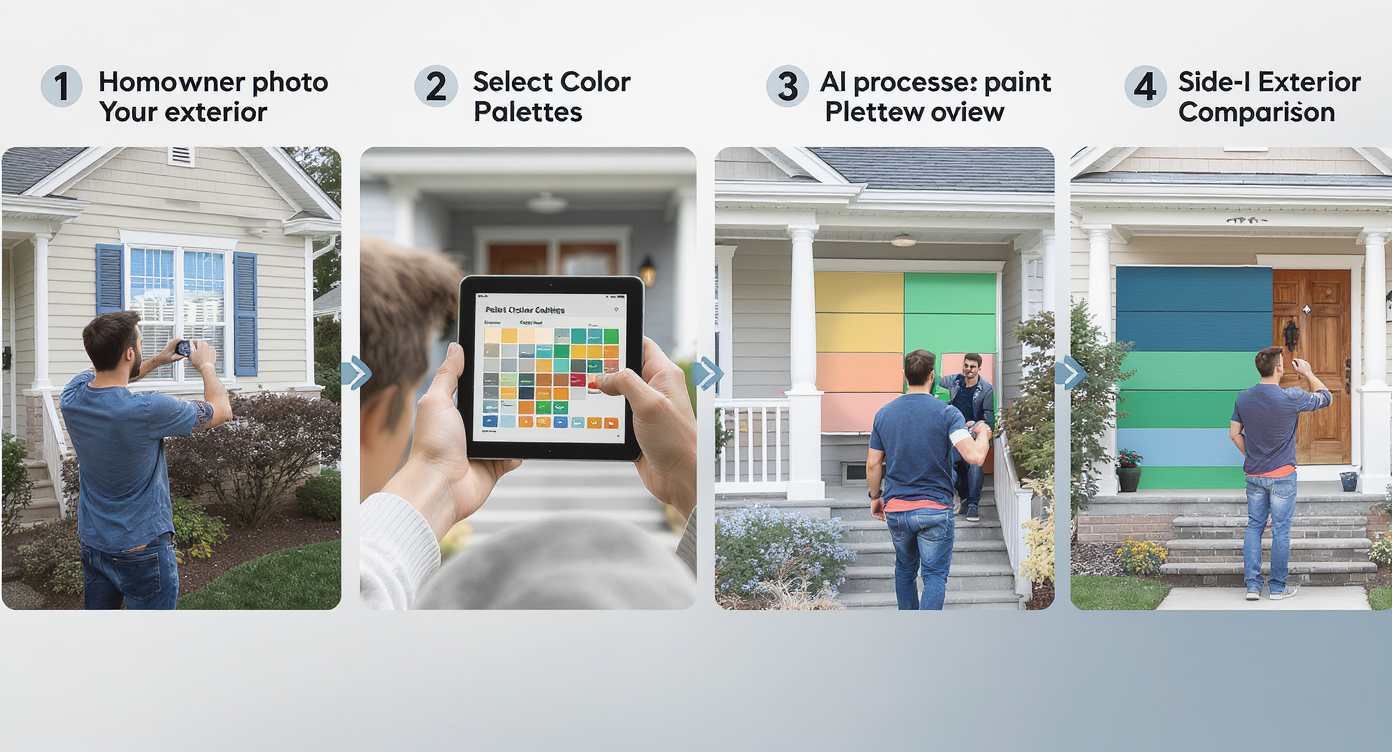
Follow these steps to capture, select, and preview exterior paint options digitally for confident color decisions.
Start with a straight, well-lit photo for the best results.
- Pick the right photo: A clear, front or three-quarter view works best. Avoid heavy obstructions.
- Check resolution: Aim for at least 2500–3000 pixels on the long edge so details render cleanly.
- Upload: Drag your image into ReimagineHome.ai and select Exterior Render.
- Choose targets: Indicate body siding, trim, shutters, doors, and garage so the preview maps correctly.
- Test palettes: Try a softer white body, mid-tone warm trim, and one or two accent doors. Save versions.
- Refine: Adjust undertones to your stone/brick and roof (e.g., creamy vs. cool white, greige vs. brown).
- Export: Download final images sized for sharing with your partner, contractor, or for future listing photos.
Pro tip: Photograph around mid-morning or late afternoon; harsh noon sun can make any white read harsher than it will feel day to day.
Tips and Tricks for More Realistic Results
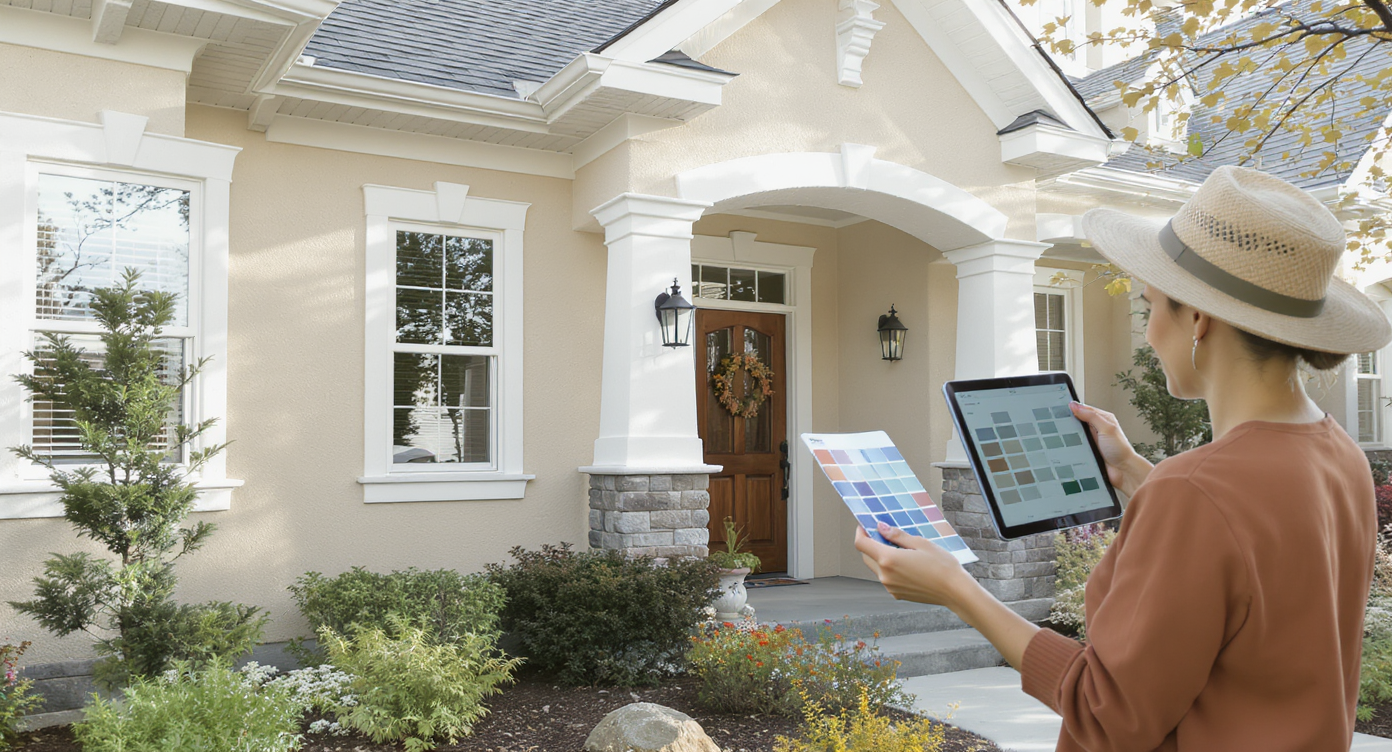
Expert tips: Use softer color contrasts and natural tones for improved realistic and welcoming exterior paint results.
Rule of thumb: extreme contrast looks crisp online but can feel harsh in person; softer steps between body, trim, and accents usually feel calmer.
- Pick a softer white: If your current white feels blinding, try an off-white in the LRV ~60–75 range instead of a high-80s bright white.
- Soften the trim: Shift from dark brown to a mid-tone greige or taupe pulled from your stone or roof; it reduces the “outline” look.
- Mind undertones: If the stone leans warm, choose a warm white; if the roof is cool gray, echo that coolness in the trim.
- Use shutters strategically: Adding shutters to upper windows can rebalance large fields of light siding and break up the expanse.
- Front door matters: A muted sage, slate blue, or wood tone often bridges white siding and earthy masonry without shouting.
- Test landscaping too: After the palette works, preview shrubs and beds to add depth and color. You can do this with AI landscaping from a single exterior photo — especially helpful if hydrangeas or flowering shrubs came to mind.
- Keep it plausible: Match what you could actually paint or add; aim for a look that suits your architecture and neighborhood.
Visualization Scenario
Upload a straight-on photo of your facade at late afternoon. Test an off-white body paired with taupe trim that echoes the stone, add sage shutters upstairs to balance scale, and a warm wood-tone door to soften the entry.
FAQ
What is an exterior render for a house?
An exterior render is an AI preview that shows new facade paint colors, trim/shutter options, and accents on a photo of your actual home. It’s a fast way to test curb appeal changes before repainting.
Can AI accurately preview exterior paint colors?
Yes, for decision-making and palette direction. While screens vary, seeing undertones and contrast on your real facade helps you choose a softer white or better trim with confidence. Try it via ReimagineHome.ai’s Exterior Render.
How do I choose a white that isn’t too bright outside?
Look for off-whites with a mid LRV (roughly 60–75), match warm vs. cool undertones to your stone/roof, and reduce contrast by lightening the trim. Preview options with exterior render before buying paint.
Can I test shutters, doors, and landscaping in the same mockup?
Yes. Use exterior render for paint, trim, shutters, and doors; then layer curb appeal with AI landscaping to preview shrubs, beds, and seasonal looks.
What resolution do I need for good AI exterior design results?
A clear, straight photo at 2500–3000 pixels on the long edge works best. Avoid heavy obstructions and extreme glare for the most realistic previews.
Visualize Your Next Listing (or Project) Before You Commit
Seeing the right palette on your actual house beats guessing — every time. Whether you’re living with a too-bright repaint or just nervous to commit, exterior render lets you rehearse the story of your facade until it feels calm, classic, and yours.
Ready to try? Upload one clear photo and explore softer whites, warmer trims, and welcoming accents with ReimagineHome.ai’s Exterior Render. If you want to test planting ideas after you dial in color, jump into its AI landscaping tool — then move forward with confidence.