
TL;DR
ReimagineHome.ai’s Remove Anything is an AI object removal tool that erases distracting items from room photos so your space looks calm and intentional. It’s ideal for clutter removal, odd fixtures, and visualizing décor plans — think “how to remove clutter and objects from listing photos” or mock up a cleaner bedroom wall before you buy art. For MLS and rentals, follow local rules and disclose where required. Try it now with your own image via the Remove Anything tool.
The Real Cost of Showing Rooms “As They Are” Online
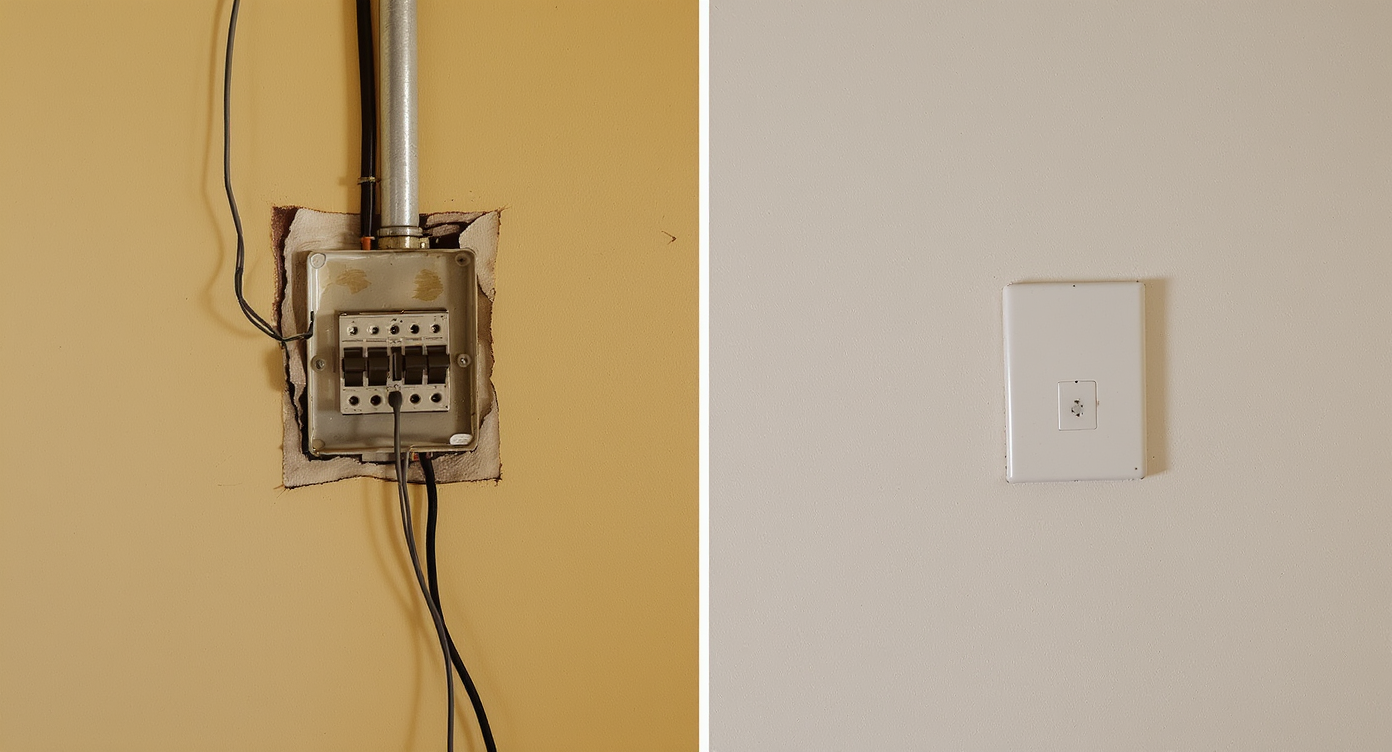
Before and after: How AI object removal cleans up busy walls for better décor focus.
Object removal AI is a tool that cleanly erases unwanted items — like a breaker box or messy cords — from a photo and fills the background convincingly. It matters because busy or awkward walls pull attention away from the room’s real features and make decision-making (and decorating) harder.
- Results: Cleaner, calmer photos that keep focus on scale, light, and layout.
- Realism: Texture-aware fills that match paint, shadows, and grain.
- Speed: Minutes, not hours — from phone shot to shareable image.
- Cost: Far cheaper than patching walls or custom carpentry just for photos.
- Workflow: Great for renters, sellers, agents, and designers testing ideas.
- ROI: Fewer objections, faster shortlists, better buyer/seller confidence.
- Peace of mind: Keep real hardware untouched; design around it smartly.
If you already have a tricky wall, upload it to ReimagineHome.ai and test Remove Anything on a real image while you read.
Why This Visual Problem Hurts More Than You Think
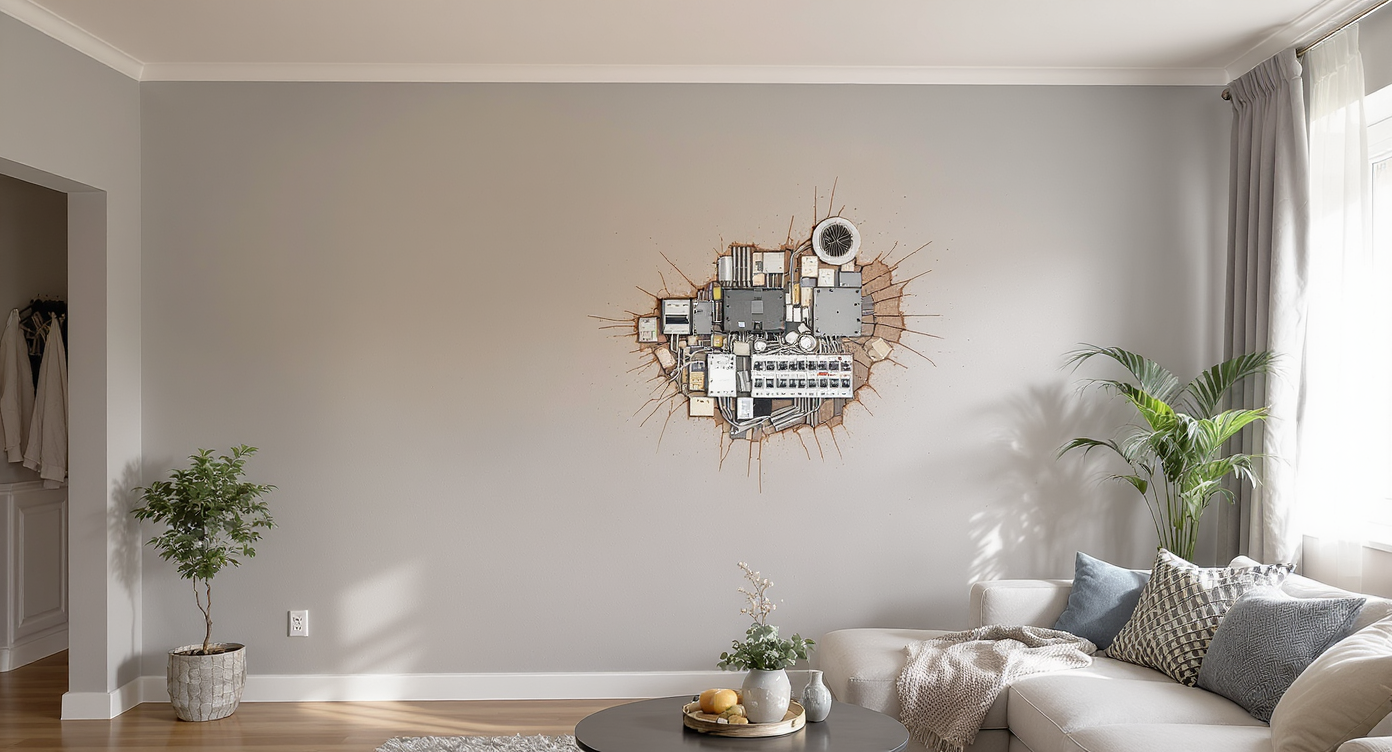
Visual distractions like breaker boxes disrupt room harmony and impair design decisions.
Even simple clutter removal can make key features — like windows, floors, and proportions — easier to read at a glance. On tiny screens, a breaker panel, thermostat cluster, or cable tangle becomes the focal point, which means fewer clicks on the rest of your photos and more second-guessing about the room.
In real life, you shouldn’t block or bury a breaker box. But in photos — for planning or marketing — there’s value in showing how a wall could feel once the visual noise is gone. Buyers scroll faster than they read; when the first impression is calm, they’re more likely to imagine furniture placement, wall color, and art instead of fixating on a single eyesore. Sellers and renters report the same thing: a tidy image reduces pre-showing friction ("Is that a repair?") and invites better conversations ("Could a mirror or gallery wall work here?").
Translation: Your décor choices get a fair shot when the photo stops shouting about the hardware.
Anecdote
That nearly perfect bedroom shot — cozy bedding, soft light — except for the metal panel peeking behind the door. One quick Remove Anything pass, and suddenly you can see the mirror-and-sconce combo you actually want to live with.
What Remove Anything Actually Is (In Plain Language)
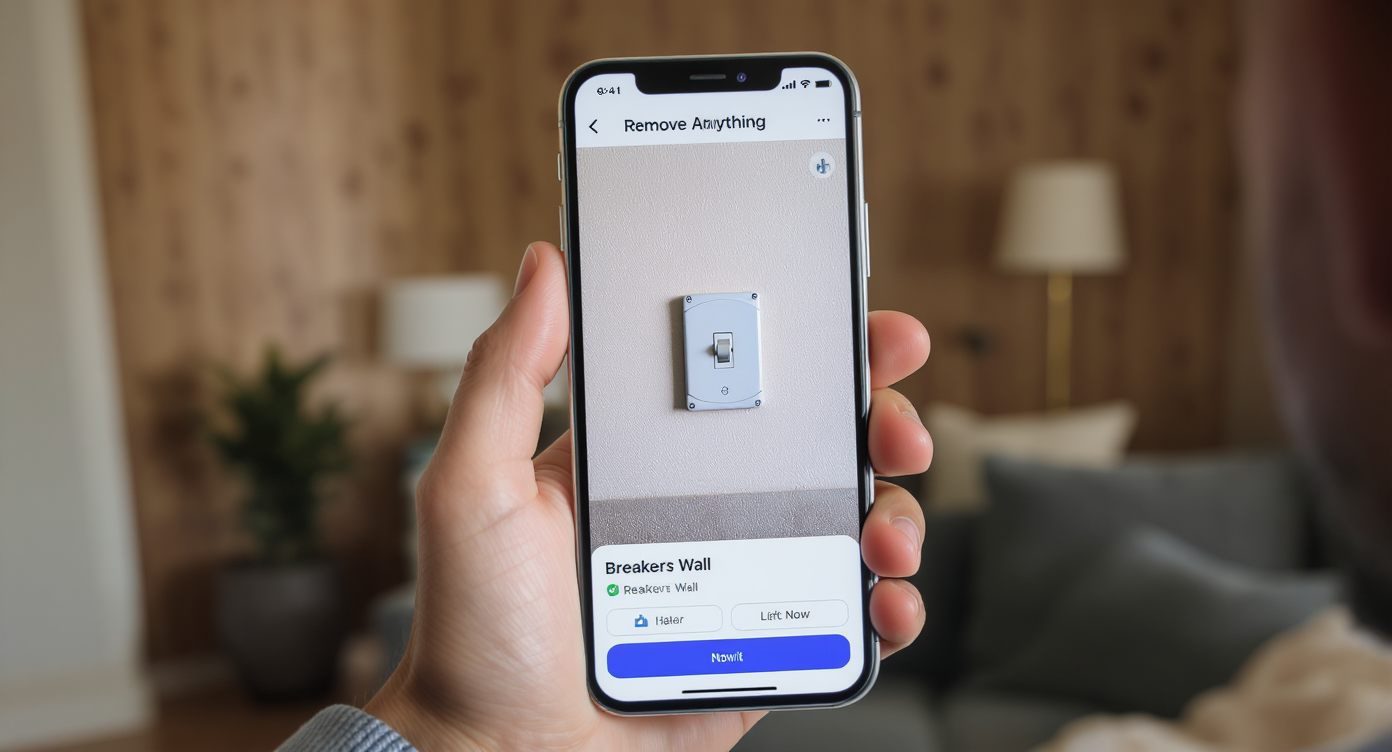
Remove Anything AI lets users easily erase unwanted wall objects with intuitive control.
Remove Anything is an AI object removal tool that lets you paint over what you want gone — breaker boxes, dangling cables, scuffs, seasonal décor — and rebuilds the background so it looks like the wall was always clean.
You provide a single photo (phone or DSLR). The output is a high-resolution, cleaned version that keeps your paint color and lighting intact while erasing the distraction. It’s perfect for ai room editor–style planning and quick mockups before you commit to purchases.
To try it, open ReimagineHome.ai’s clutter and object removal tool. It’s designed for both everyday homeowners and real estate pros who need fast, realistic results.
How Remove Anything Works Step by Step
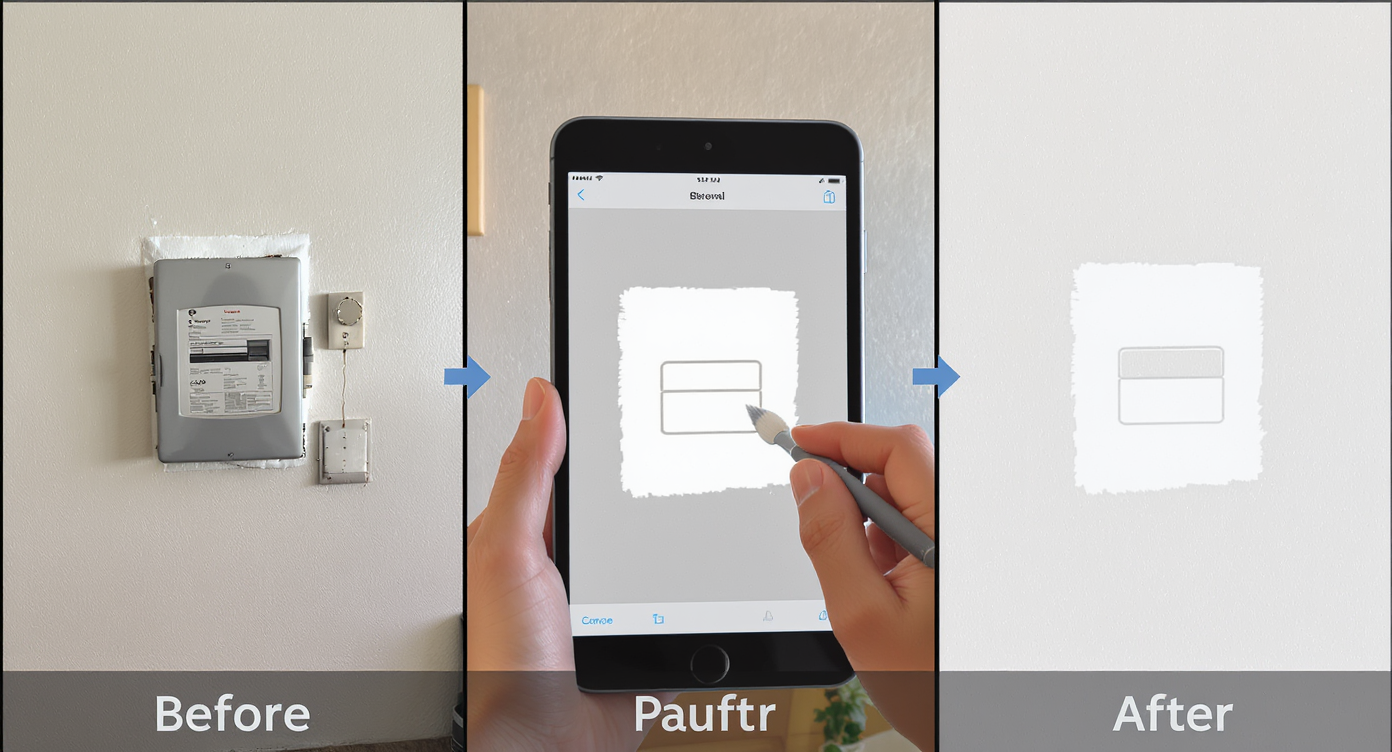
How Remove Anything works: from cluttered wall to clean canvas in simple steps.
Good source images make the best AI edits, especially for walls and paint textures.
- Choose the right photo: Shoot the wall straight-on if possible, with even light and no harsh glare. Aim for at least 2000–3000 pixels on the long edge.
- Upload: Drag your photo into ReimagineHome.ai and select Remove Anything.
- Brush the problem area: Paint over the breaker box, cables, old hooks, or paper remnants you want gone. Zoom in for clean edges.
- Generate: Let the AI rebuild the background. It will infer flat paint, subtle orange peel, or light shadowing to match your existing wall.
- Refine: If a patch looks too smooth or too sharp, run a smaller pass to blend texture or re-mask edges.
- Export: Download for moodboards, sharing with a landlord, or collaborating with a stager. For listings, follow MLS rules and disclose material edits when required.
Constraint to keep in mind: don’t use tiny, noisy photos; low-res images limit texture fidelity and can make fills look unnaturally soft.
Tips and Tricks for More Realistic Results
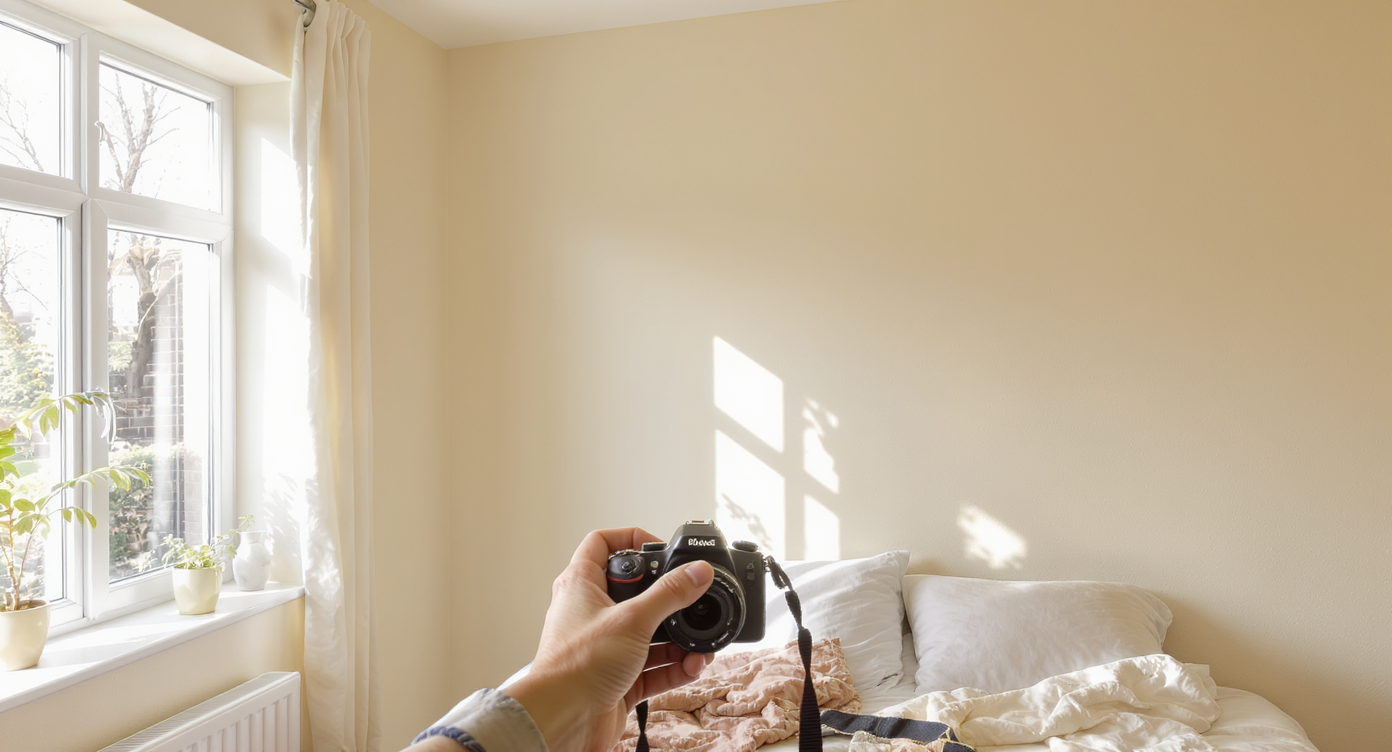
Tips for realistic AI edits: clean, well-lit, and well-aligned source photos matter most.
Realism rises when your source photo is clean, bright, and aligned to the wall.
- Mind the light: Avoid mixed color temperatures. A single light source (daylight or warm lamp) helps the AI match shadows and paint color accurately.
- Shoot straight: A level shot reduces warping. If the panel door is ajar in your photo, close it before shooting to get a simpler silhouette to remove.
- Blend edges: After removal, do a second, small brush pass along the perimeter so texture and micro-shadows look continuous.
- Keep it plausible: For marketing photos, remove temporary clutter (boxes, cords, magnets) but think twice before erasing permanent fixtures. When in doubt, disclose.
- Design-forward planning: Use your cleaned image to test art or mirror placement with your favorite ai interior design tools or style boards. If you’re considering tapestry layering, see ideas in our maximalist bedrooms guide.
- Color test: After removal, duplicate the image to try different wall paint colors or trim accents using your preferred ai home editor. A neutral backdrop helps you audition bolder décor.
Visualization Scenario
Use a phone photo of your wall, remove the breaker box visually, then overlay a simple gallery grid or full-length mirror to test scale before you buy.
FAQ
Can AI really remove a breaker box from a wall photo?
Yes, object removal can erase a breaker panel in a photo and reconstruct the wall texture. Use it for décor planning or concepting; for real estate marketing, follow local guidelines and disclose edits as needed.
Is it allowed to remove permanent features in listing photos?
Policies vary by MLS and jurisdiction. Many permit clutter removal but discourage removing or altering fixed features. When in doubt, keep the edit to temporary items and be transparent.
What resolution do I need for good object removal?
Aim for 2000–3000 pixels on the long edge. Higher-resolution photos preserve paint texture and shadow detail, which improves realism.
Will the AI match my wall’s paint and texture?
Typically yes, especially with even lighting and a straight-on angle. If a patch looks too smooth, rerun a small blend pass around the edges.
How fast is the Remove Anything workflow?
Most cleanups take a few minutes from upload to export. You can iterate quickly to test mirrors, art grids, or shelving ideas without buying anything first.
Visualize Your Next Listing (or Project) Before You Commit
Most rooms don’t have a “design problem” — they have one distracting element that steals attention. Clean it in the photo, and suddenly your layout, color, and personality read loud and clear. That’s why object removal is a quiet superpower for renters, homeowners, and agents: it lets you rehearse the story of a space without moving a single wire.
Ready to see that “random wall” feel finished? Try Remove Anything on ReimagineHome.ai, or start from the home page at ReimagineHome.ai and upload your photo. You’ll have a cleaner canvas — and clearer decisions — in minutes.