
TL;DR
Remove Anything on ReimagineHome.ai is an AI object removal tool that deletes clutter and distractions from interior or exterior photos in minutes. It’s the fastest answer to how to remove clutter and objects from listing photos while keeping the space’s personality intact. Try its clutter and object removal tool on a real image as you read: Remove Anything on ReimagineHome.ai. Clean visuals drive clicks, showings, and calmer decision‑making at a fraction of the cost of reshoots.
The Real Cost of Showing Rooms “As They Are” Online
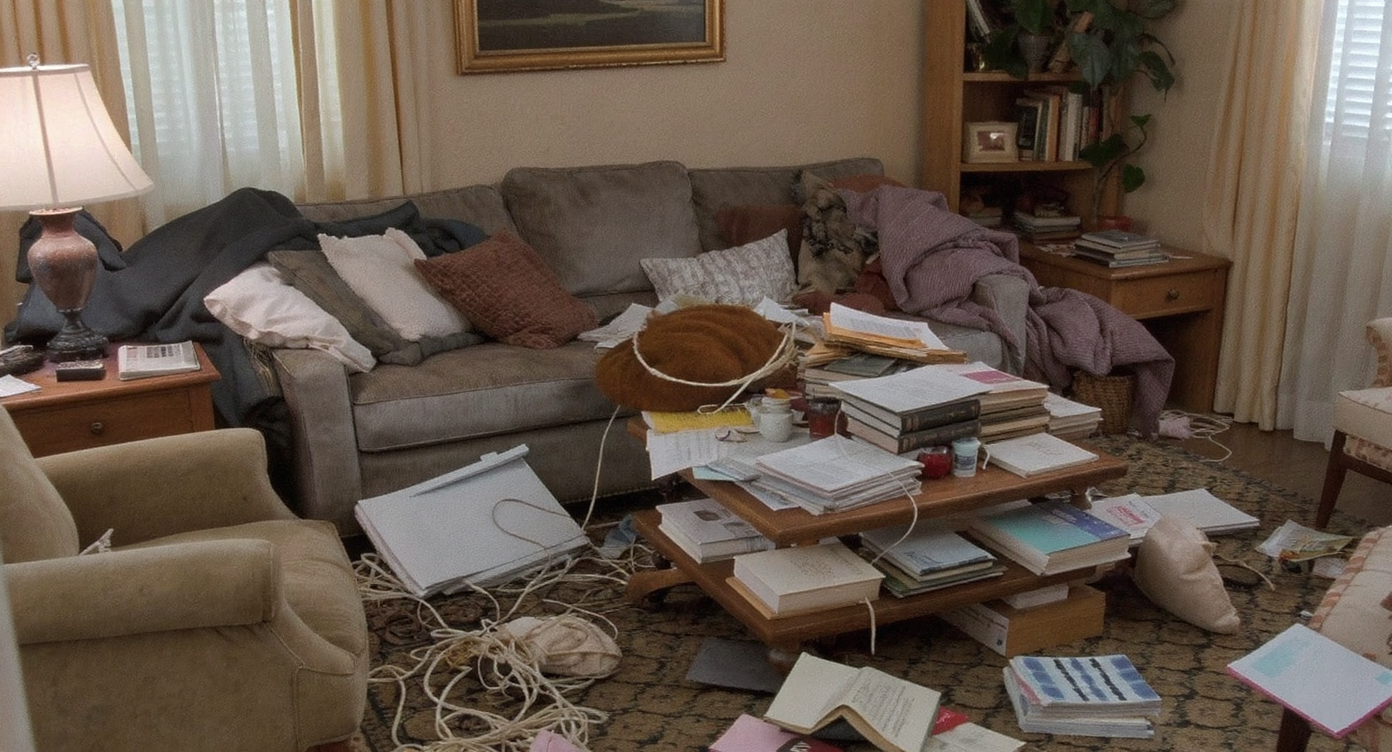
Cluttered rooms with visual distractions can overwhelm the space and hide key design features.
Remove Anything on ReimagineHome.ai is an AI object removal solution that scrubs clutter, cords, piles, and odd distractions from your photos. It matters because buyers, renters, and even friends skim images in seconds — clean frames help them notice the architecture, the light, and the pieces you love, not the chaos around them.
- Results: Even simple clutter removal makes key features easier to spot at a glance, improving click‑through and dwell time.
- Realism: Edits preserve light, shadows, and surfaces so the room feels authentic — just tidier.
- Speed: Turnaround is minutes, not days; perfect for fast‑moving listings and social drops.
- Cost: Avoid reshoots, staging dayrates, or packing a room just to take a photo.
- Workflow: Use it as your AI room editor alongside your usual camera roll and MLS exports.
- ROI: Clearer photos reduce buyer confusion and help agents and sellers stay confident.
- Peace of mind: Keep the lived‑in vibe IRL; show the edited, design‑ready frame online.
If you already have a tricky photo in mind, upload it to ReimagineHome.ai and test this solution on a real image while you read.
Why This Visual Problem Hurts More Than You Think
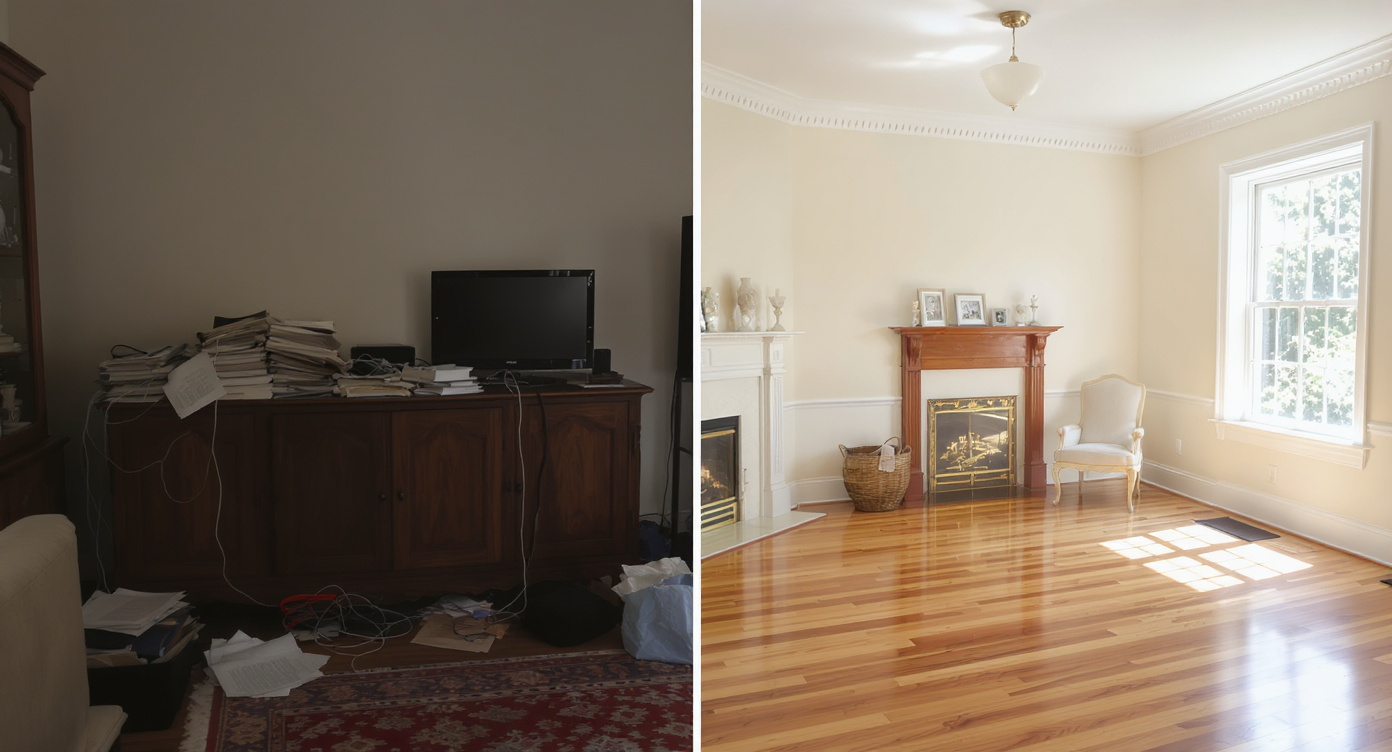
Visual distractions like clutter pull focus from a room’s best architectural and design elements.
Even small visual distractions pull focus from a room’s selling points. Piles on the credenza, a tangle of lamp cords, or that charming stack of books on the stairs may feel personal in person, but on screen they read as tight, unsafe, or smaller than reality.
Here’s how it shows up:
- Scroll behavior: People skim thumbnails. Clean, calm frames win the click against busier neighbors.
- Buyer perception: Clutter compresses a space visually; a tidy shot makes ceilings feel taller and circulation clearer.
- Confidence: Agents and sellers second‑guess “busy” photos; a quick edit settles nerves and aligns expectations.
In short, what feels warm in daily life often needs a gentle visual edit online. AI interior design tools help, but removing visual noise first is the simplest win.
Anecdote
That charming stack of books up the stairs? It’s a vibe in person — and the first thing people worry about in photos. One pass with AI removes the hazard without losing the warmth.
What Remove Anything Actually Is (In Plain Language)

AI object removal lets users quickly clean photos by highlighting objects to remove with intuitive tools.
AI object removal is a targeted, photo‑based cleanup. You upload a photo, highlight what you want gone — boxes, laundry, pet gear, wall clutter, even the stack on the stair tread — and the AI reconstructs the background so the space looks as if the distraction was never there.
With ReimagineHome.ai’s clutter and object removal tool, you work from a single image, keep the parts you love (that statement sofa, the gallery wall), and quietly erase what doesn’t support the story. It’s ideal for lived‑in rentals where paint can’t change, maximalist rooms that photograph busy, and listing photos that need to focus on layout and light.
If you need to see a room fully cleared for layout planning or marketing, pair it with the platform’s Occupied → Vacant clearing tool to visualize a blank canvas in seconds. For deeper inspiration, this short guide covers how teams go from occupied to pristine: Occupied to Vacant in Minutes.
How Remove Anything Works Step by Step
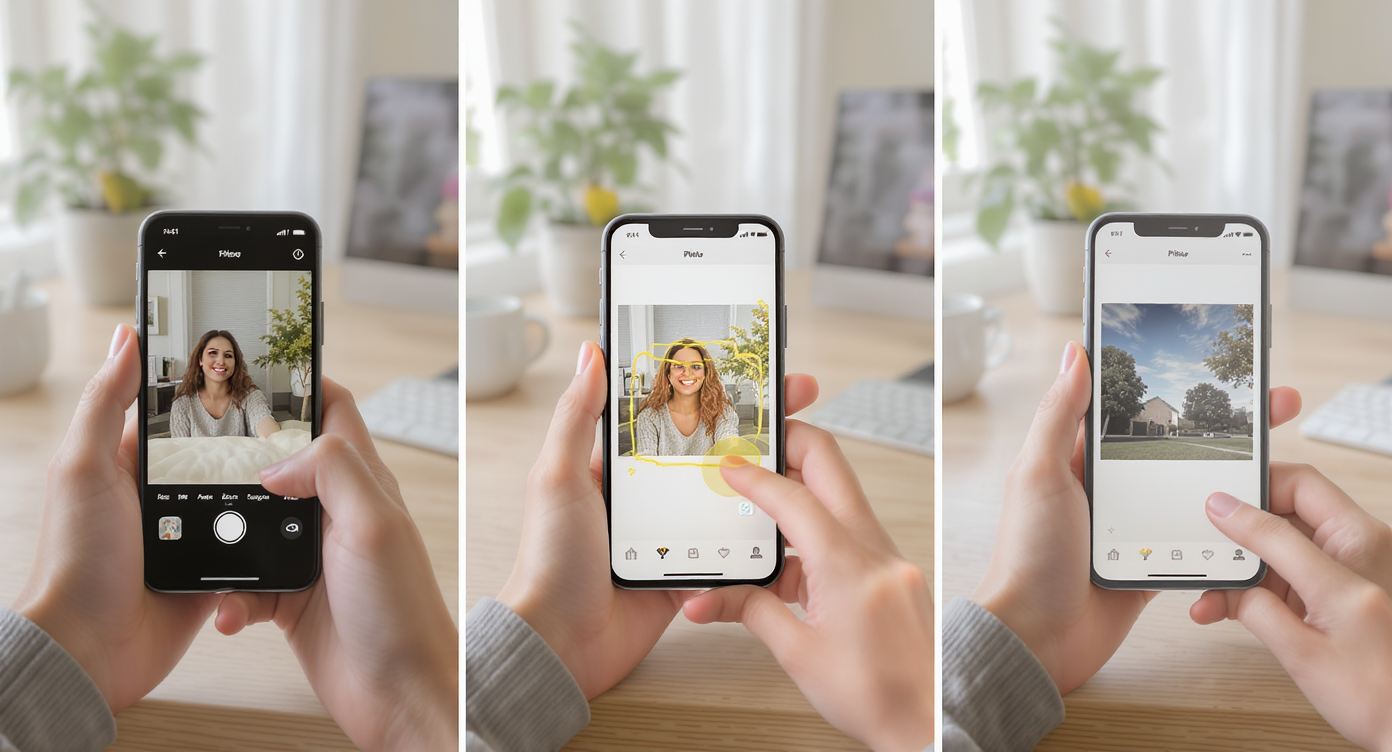
Simple steps from photo choice to final clean image make AI removal fast and user-friendly.
Good inputs lead to great outputs — and it’s fast:
- Choose the right photo: Aim for straight‑on or lightly angled shots that show floors, walls, and key surfaces. Natural light helps.
- Upload to ReimagineHome.ai: Drop your image into the dashboard from desktop or mobile.
- Select Remove Anything: Choose the object removal tool and brush over the items to delete — think cords, bins, countertop clutter, stair stacks, and random wall hangings.
- Generate and review: The AI reconstructs the missing areas with plausible texture, pattern, and light. Zoom in to check edges and shadows.
- Refine if needed: Run a second pass on small leftovers, or undo to keep sentimental pieces in frame.
- Export for MLS and socials: Save high‑resolution files sized for your portal, brochure, or feed.
Best practice: Start with the highest quality image you have — ideally 3000+ pixels on the long edge — and avoid motion blur. If the base photo feels flat, run a quick polish with ReimagineHome.ai’s image enhancement tool before or after cleanup for truer color and contrast.
Tips and Tricks for More Realistic Results

Removing only visual blockers preserves authenticity while highlighting essential design features.
Rule of thumb: Remove anything that blocks sightlines or hides permanent features; keep anything that defines style or scale.
- Protect the hero: Leave in the great couch, a key rug, or a single plant to communicate scale and vibe.
- Edit floor first: Clearing floors and stair treads instantly calms a frame and improves perceived safety and flow.
- Tame the edges: Visual noise at the perimeter — cords, tiny frames, leaning stacks — pulls eyes away from the center.
- Mind the light: If you remove an object that cast a shadow, ensure the result looks natural; small retouches go a long way.
- Keep it plausible: Don’t erase architectural elements or built‑ins you’re not actually changing; that crosses from cleanup into misrepresentation.
- Label when required: Some MLS boards expect a note when photos are virtually edited. Check your local rules.
- Want more than cleanup? Use Surface Restyling to test a digital repaint or cabinet color after you’ve cleared visual clutter.
Visualization Scenario
Upload a living room photo with layered textiles and a statement sofa. Erase floor piles, stray cords, and stair stacks. Leave the hero couch and one plant. Export a calmer, design‑forward image for your carousel.
FAQ
FAQ
Can AI really remove clutter and objects cleanly from a room photo?
Yes. ReimagineHome.ai reconstructs the missing background with consistent texture, color, and light for realistic results. Start with a sharp, high‑resolution image for best quality.
Is object removal allowed in real estate listings?
Policies vary by MLS. Many allow minor cleanup (like removing clutter) but may require disclosure of virtual edits. When in doubt, check local rules and label accordingly.
How long does AI object removal take?
Most images process in minutes. Complex scenes may need a second pass to refine edges or shadows, but you’ll still move faster than a reshoot.
What resolution do I need to get good results with AI edits?
Aim for 3000+ pixels on the long edge, good exposure, and minimal motion blur. Higher quality inputs let the AI rebuild textures more convincingly.
What’s the difference between Remove Anything and Occupied → Vacant?
Remove Anything targets selected items (clutter, cords, small objects). Occupied → Vacant clears the room to a blank canvas for layout planning or marketing.
Visualize Your Next Listing (or Project) Before You Commit
Where Remove Anything Totally Changes the Game
Even simple before/after moments can reset a story.
- The maximalist living room: The shelves sing, but the books piled on stair treads worry some viewers. One pass with Remove Anything clears the steps, the runner pattern continues, and the room reads as intentional and safe — clicks and showing requests follow.
- The working studio corner: Brushes, canvases, and shipping tubes tell the artist’s story, but the listing needs to sell square footage. Edit the floor and desktop clutter; keep a single easel for scale. The space looks larger without losing character.
- The short‑term rental hero shot: Dog bed, charger cords, and an overflowing side table dilute a great sofa moment. Remove the distractions, center the couch, and the thumbnail becomes the booking magnet.
Common Mistakes with Remove Anything (and Easy Fixes)
Most disappointments come from weak source photos, not the AI itself.
- Pushing edits too far: If the frame looks sterile or “too perfect,” restore a few lived‑in elements for warmth.
- Tiny or blurry inputs: Re‑shoot or upscale before editing; low‑res files limit reconstruction quality.
- Ignoring style: A historic home needs period‑aware restraint. Edit clutter, not character.
- Inconsistent carousel: If only one photo is pristine, the rest will feel off. Apply light cleanup across the set.
- Missing disclosure: When rules require it, label virtually edited photos — it preserves trust.
Who Gets the Most Value from This Tool
Anyone who needs tidy, design‑forward visuals without moving furniture benefits.
- Agents and teams: Faster market entries, stronger thumbnails, fewer reshoots.
- Brokerage marketing staff: A cleaner, consistent brand look across dozens of listings.
- Photographers and media companies: Add AI object removal as a margin‑friendly upsell.
- Sellers, flippers, investors: Show layout and finishes clearly while you’re mid‑project.
- Renters and homeowners: Keep your maximalist joy IRL; publish calmer photos for sublets, design boards, or a portfolio.
- Designers and stagers: Use this AI room editor to prep mood boards, then layer staging or color tests on top.
Want more examples of editing maximalist spaces without losing soul? This quick read shows how to visualize a lighter touch before moving anything: Maximalist Interiors, Visualize the Edit.
Visualize Your Next Listing (or Project) Before You Commit
Great marketing is rehearsal. Use AI to practice the shot — calmer, clearer, more you — before you spend time packing, hauling, or repainting. Then decide what’s worth doing in the real world.
Clean up one tricky frame today with Remove Anything on ReimagineHome.ai, or explore the full toolkit at ReimagineHome.ai for blank‑canvas clears, surface restyling, and image enhancement.