
TL;DR
Occupied to Vacant is an AI tool that turns a furnished photo into an empty room, so you can plan zones, test layouts, or prep better listing photos fast. It’s ideal for small studios where clutter and overlapping functions make rooms feel smaller. Try it on a real image now at ReimagineHome.ai’s Occupied to Vacant tool and explore how to redesign my room with AI without lifting a box.
The Real Cost of Showing Rooms ‘As They Are’ Online
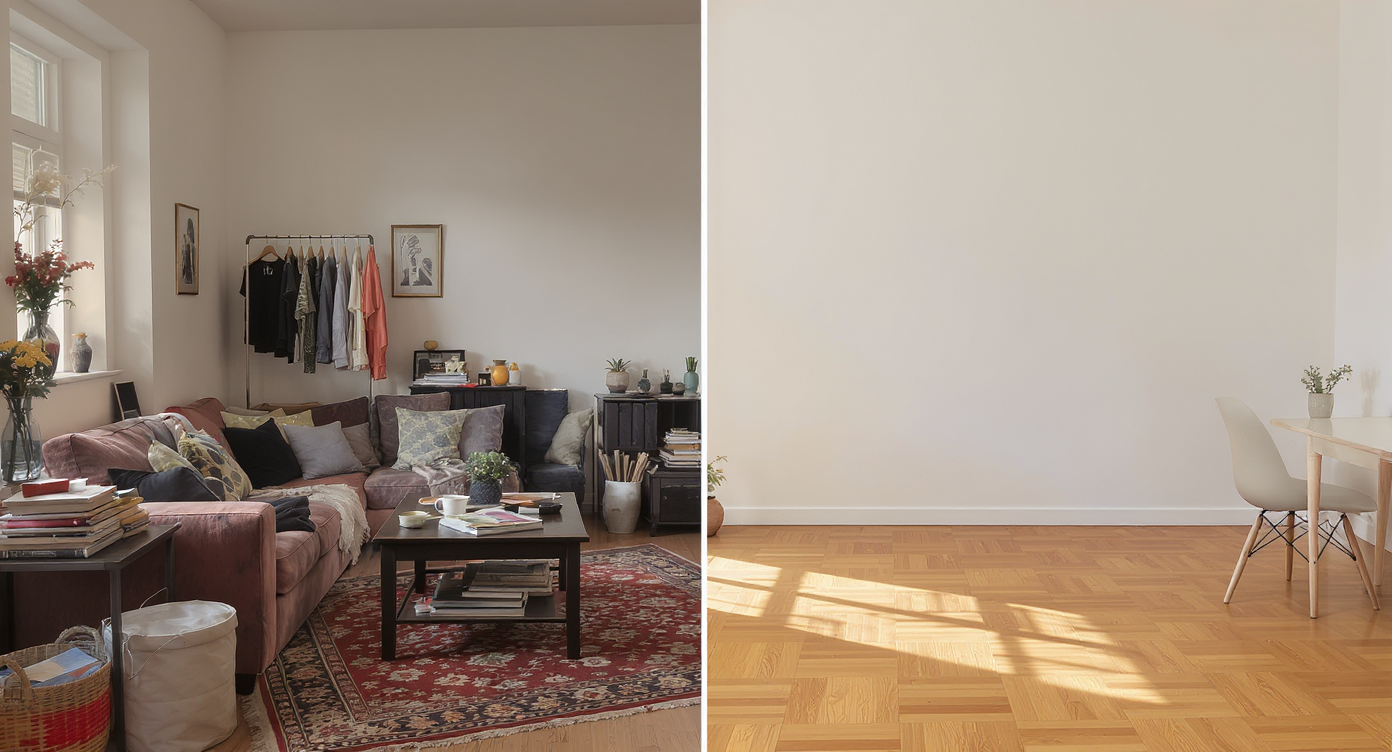
Occupied vs vacant: visualizing how clearing a room unveils its true spaciousness.
Occupied to Vacant is AI that clears a furnished or cluttered room photo into a clean, empty canvas. It solves the most common problem in small-space images: too many objects competing for attention and shrinking the perceived size.
- Results: Bigger-feeling rooms, cleaner lines, and easier-to-understand layouts on first glance.
- Realism: Architectural features are preserved; only movable items are removed.
- Speed: Minutes from upload to export — perfect for fast-moving listings.
- Cost: Far cheaper than physical storage, movers, and multiple re-shoots.
- Workflow: Clear the photo, then virtually stage or restyle to test zones.
- ROI: More clicks and showings when photos read spacious and intentional.
- Peace of mind: Sellers and renters see options without upheaval.
If you already have a tricky studio or multifunction room, upload it to ReimagineHome.ai and test this on a real image while you read.
Why This Visual Problem Hurts More Than You Think
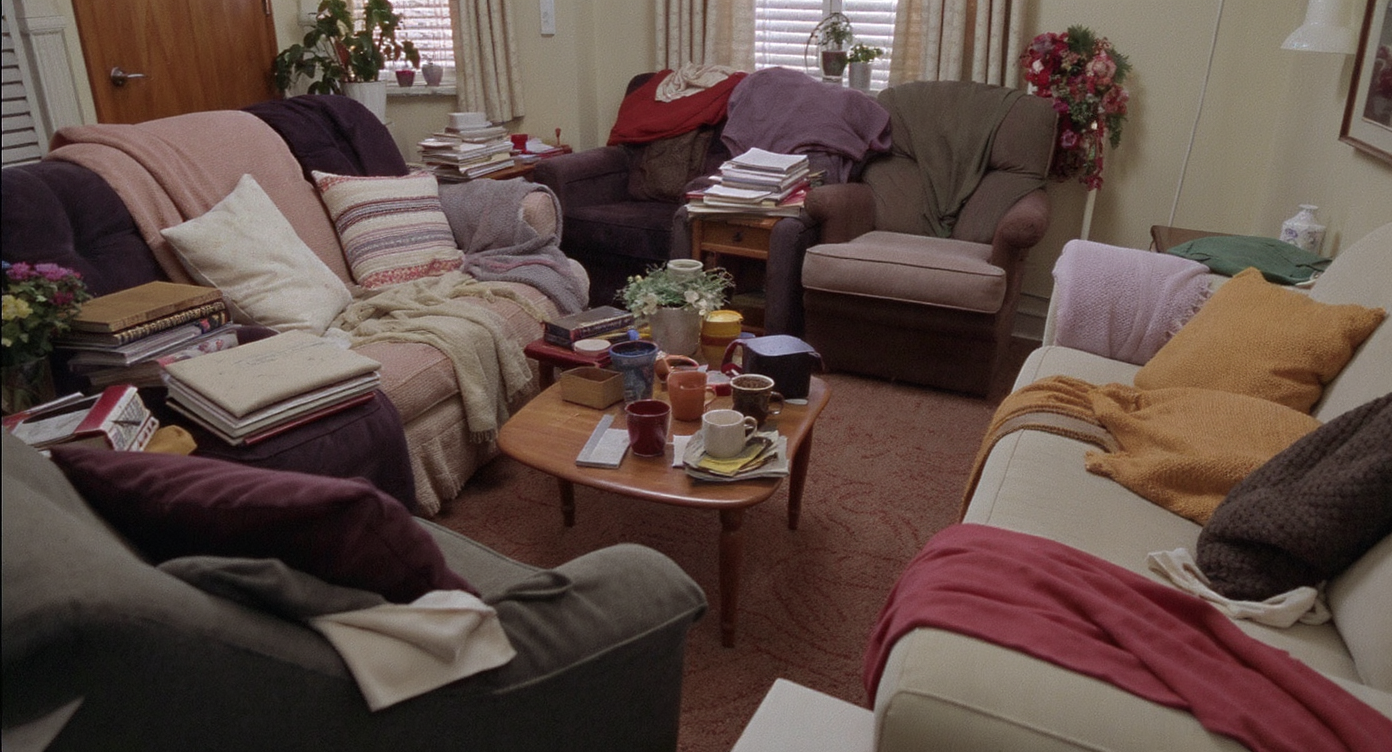
Excess furniture and clutter shrink small rooms visually, making them feel less inviting.
Small rooms crowded with everyday items almost always look smaller on screen than they feel in person. When a studio tries to serve as living room, bedroom, and workspace, the camera compresses depth, and visual noise hides the plan.
That’s why even clever zoning — an open bookshelf divider, a half-height accent wall framing the bed, or a color-differentiated hallway desk — can underperform in photos. The idea is strong, but the evidence gets drowned out by objects: cables, plant pots, side tables, mismatched chairs, layered textiles. Scroll behavior is ruthless; buyers and renters pause on images that feel clear and intentional.
Agents report that decluttered, simplified images help prospects grasp “how I’d live here” faster. Sellers say they gain confidence when photos make the plan obvious. And photographers note that removing visual noise makes flooring, window size, and sightlines easier to read — the features that actually sell a compact space.
Anecdote
That clever 30 sqm studio that used a tall open bookshelf and a half-height accent wall to carve out two “rooms within a room”? Clearing the photo first makes those ideas pop instantly for viewers.
What Occupied to Vacant Actually Is (In Plain Language)
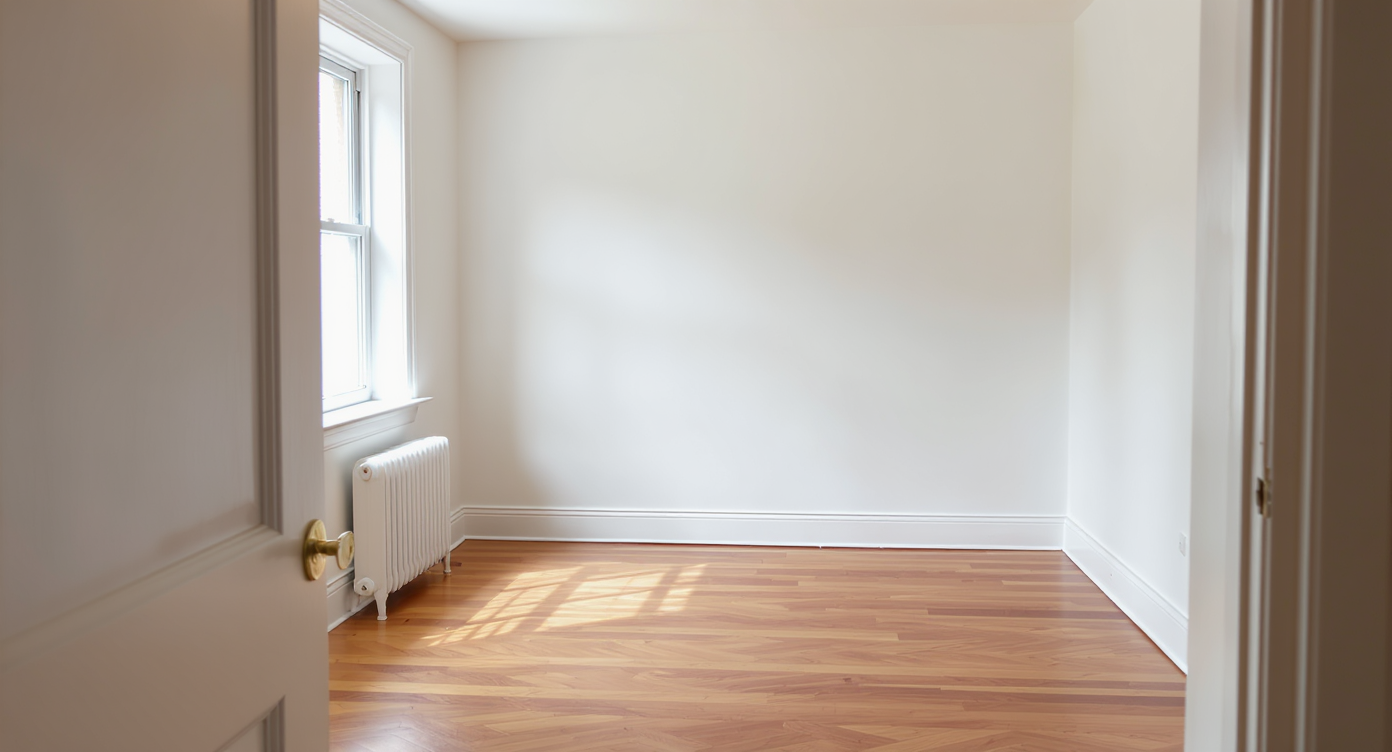
Occupied to Vacant reveals the true architectural essence by digitally removing movable items.
Occupied to Vacant is a photo-to-photo AI edit that removes furniture and decor to reveal a believable, empty room — floors, walls, windows, built-ins, and light intact. You upload a normal interior photo; it returns a high-resolution, emptied version that looks like you packed and moved out.
This is useful for small studios, awkward nooks, or hallways acting as micro-offices. Start with a blank canvas, then decide how to zone: bed here, desk there, shelf divider aligned to the window, accent paint to frame a “room within a room.” For direct access, try ReimagineHome.ai’s Occupied to Vacant tool to clear a space in minutes.
From there, many users add a second pass with staging or restyling. After you’ve emptied the photo, you can quickly place furniture, swap styles, or add decor using an AI room designer approach — essentially room design AI layered on top of your blank canvas.
How Occupied to Vacant Works Step by Step
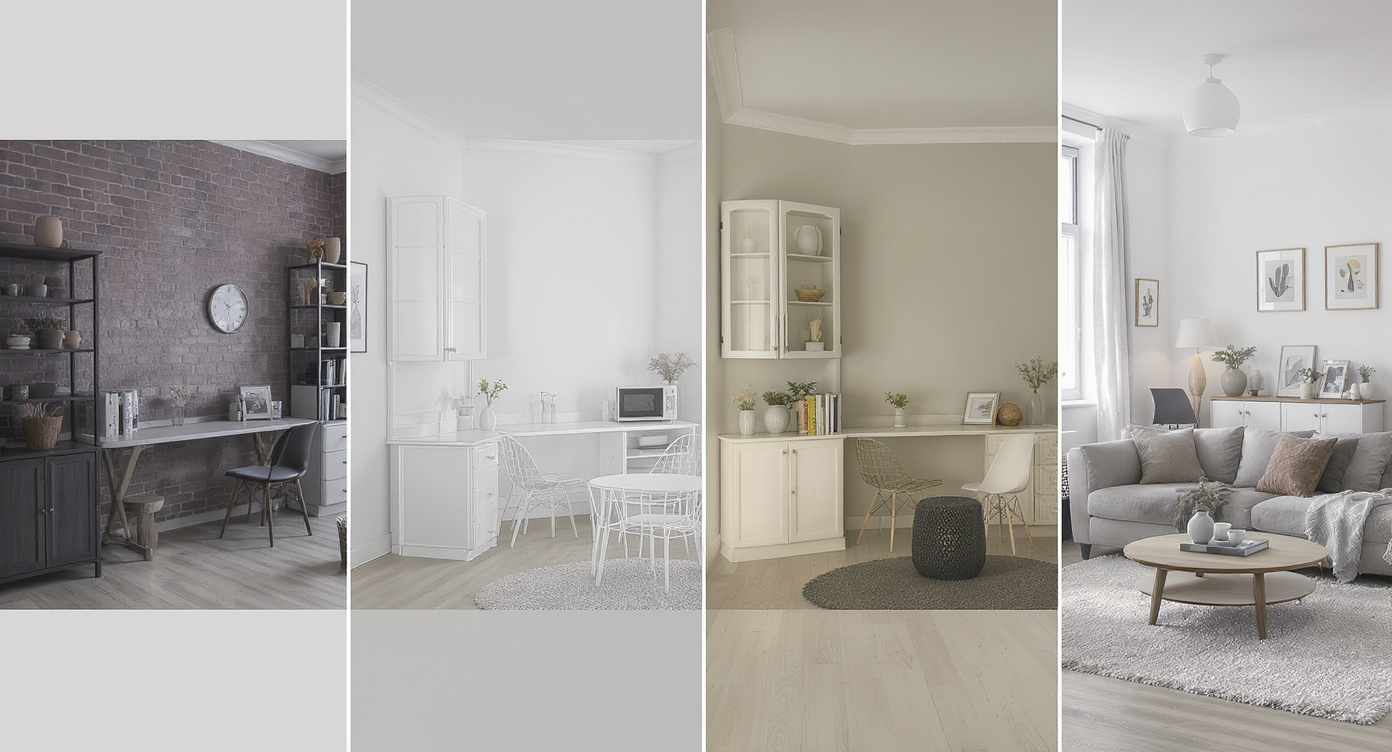
How Occupied to Vacant transforms spaces: from furnished to empty to staged with precise AI editing.
Good source photos and a simple workflow produce the best results.
- Choose the right photo: Pick the main angle that explains the plan — bed plus living zone, or entry plus hallway desk. Aim for 3000+ pixels on the long edge for clean edges.
- Upload: Drag the image into Occupied to Vacant on ReimagineHome.ai.
- Select the tool: Choose the “Empty Your Space”/Occupied to Vacant option to remove furniture and decor.
- Generate: The AI clears movable objects while preserving architectural features and finishes.
- Refine: If there’s a small item left, run a quick pass with its clutter and object removal tool to tidy the last details.
- Restyle (optional): Want to demonstrate a zone? Use ReimagineHome.ai’s virtual staging solution to place a sofa, a Kallax-style room divider, or a compact desk.
- Export: Save a high-res version for MLS/portals or seller presentations; keep the before/after for a persuasive carousel.
Constraint to note: Photos shot level, with verticals straight and natural light if possible, produce more realistic empties and better virtual staging alignment.
Tips and Tricks for More Realistic Results
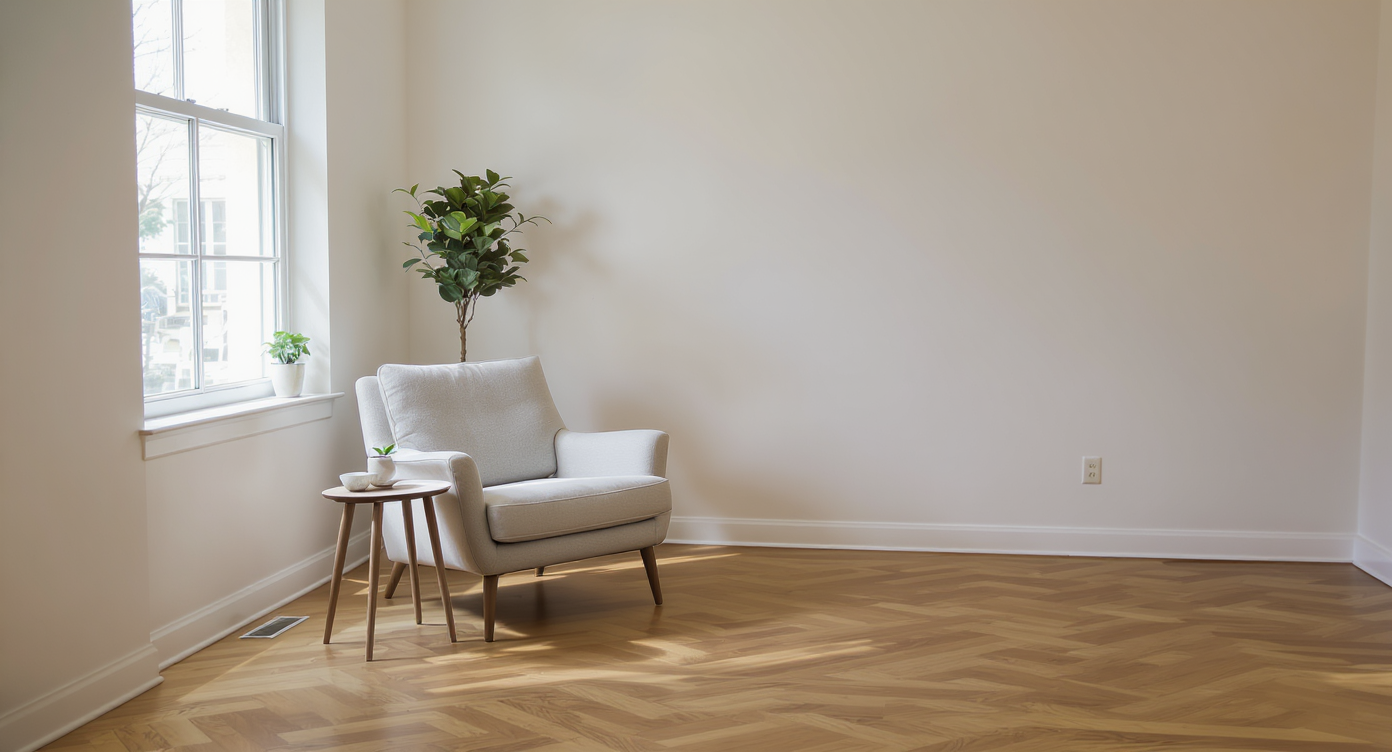
Subtle virtual staging tips help maintain realism while enhancing room appeal post-clearing.
A practical rule: the more believable the source photo, the more believable the empty room and any AI staging that follows.
- Shoot like a plan: Capture the three most informative angles that tell the story of zones — sleeping, living, working. Leave tight vignettes for later.
- Mind the floor: Wood grain, baseboards, and thresholds help the AI reconstruct surfaces cleanly; avoid heavy rugs if you can roll them up before shooting.
- Use accent paint strategically: After you clear the room, stage a half-height or full-height digital repaint to frame the bed or hallway workspace. This is a safe way to test color before buying paint.
- Scale the divider: When virtually staging, size a bookcase divider to just below door height so it feels intentional and doesn’t choke light.
- Keep style consistent: If the building skews Scandinavian-modern, stage with clean lines, warm wood, and a restrained palette. Overly ornate pieces can look out of place in compact spaces.
- Test traffic flow: Stage a path 30–36 inches wide from entry to bed and to balcony; buyers subconsciously look for easy movement in a small home.
- Don’t overfill: One sofa, one coffee table, one chair — then stop. In studios, negative space is your luxury item.
Visualization Scenario
Upload your current studio photo, clear it with Occupied to Vacant, then virtually stage a divider and a calm green accent to frame the bed and a hallway desk. Export both before/after for your listing carousel.
FAQ
Can AI make a room look empty without misrepresenting the listing?
Yes. Occupied to Vacant removes movable items and keeps permanent features intact, so it’s a truthful way to show the space. Pair the empty image with a clearly labeled staged version for transparency.
How is Occupied to Vacant different from basic clutter removal?
Clutter removal targets select items; Occupied to Vacant clears the entire room for a true blank canvas. If you only need to delete a few objects, use the object removal tool.
What resolution do I need for good results?
Upload the highest-quality photo you have; 3000+ pixels on the long edge is a safe benchmark for real estate photos and AI room edits.
Can I restage the space after emptying it?
Absolutely. After you clear the room, use ReimagineHome.ai’s virtual staging solution to place furniture, add decor, or test a divider — a fast path to room design AI that feels real.
Is this useful if I’m not selling, just planning a makeover?
Yes. Many renters and owners use it as an AI interior design from photo workflow to try layouts and accent colors before moving or buying anything.
Visualize Your Next Listing (or Project) Before You Commit
Before-and-after clarity can unlock decisions you’ve been circling for months. Clear the room digitally, confirm the best layout, and — if you’re selling — present a studio that reads as spacious, intentional, and easy to live in.
Whether you’re an agent prepping a compact listing or a renter planning a smarter setup, start with the blank canvas. Try Occupied to Vacant on ReimagineHome.ai, then layer in virtual staging or light restyling to bring your zones to life.