
TL;DR
ReimagineHome.ai’s Interior Renovation tool turns a single room photo into a realistic renovation preview, so you can test new floors, wall colors, layouts, and finishes before spending a dollar. This is the fastest way to explore home renovation AI and answer long‑tail questions like “how to preview interior renovation with AI” or “room transformation AI from a photo.” If you already have a tough image, upload it to ReimagineHome.ai and try a render while you read. Clear visuals reduce buyer hesitation, help sellers commit to the right scope, and keep costs focused on what actually matters.
The Real Cost of Showing Rooms “As They Are” Online
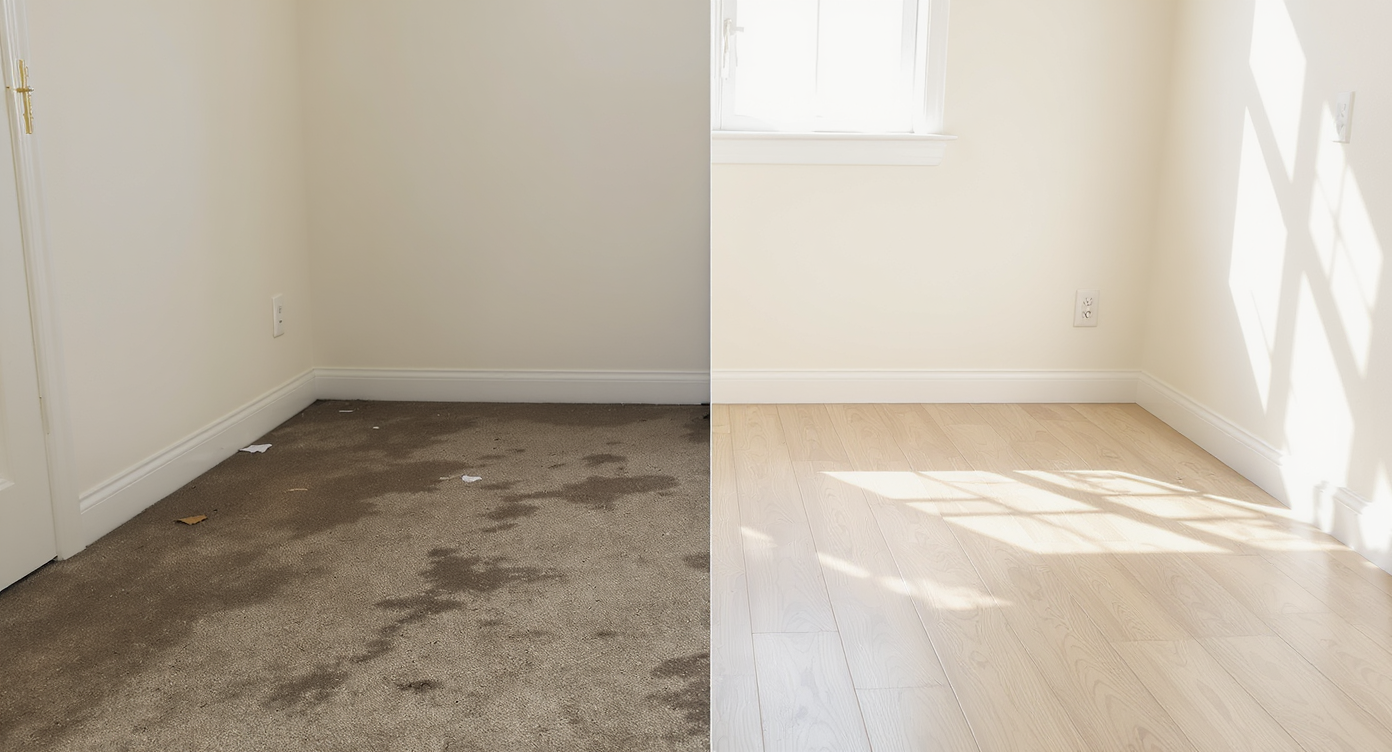
See how interior renovation AI creates credible clean-after visuals that invite buyers and inspire action.
Interior photos full of debris, ruined carpet, or smoke stains tend to depress clicks and showings; a clean, credible “after” vision invites action. Interior Renovation AI lets you simulate a remodel from a single image, so stakeholders can agree on flooring, layouts, and finishes before spending money or time.
- Results: Preview a full room makeover — floors, paint, fixtures, and layout adjustments — from one photo.
- Realism: Photorealistic lighting and materials keep the vision grounded and easy to trust.
- Speed: Generate multiple renovation options in minutes, not weeks.
- Cost: Use room renovation AI to test ideas before committing to contractors or materials.
- Workflow: Share renders with clients, sellers, or crews to align scope and sequence.
- ROI: Clear plans reduce rework and focus spend on upgrades that move the needle.
- Peace of mind: Visual proof that “this can clean up beautifully” without stepping on broken glass.
If you already have a tricky listing photo in mind, upload it to ReimagineHome.ai and test this solution on a real image while you read.
Why This Visual Problem Hurts More Than You Think
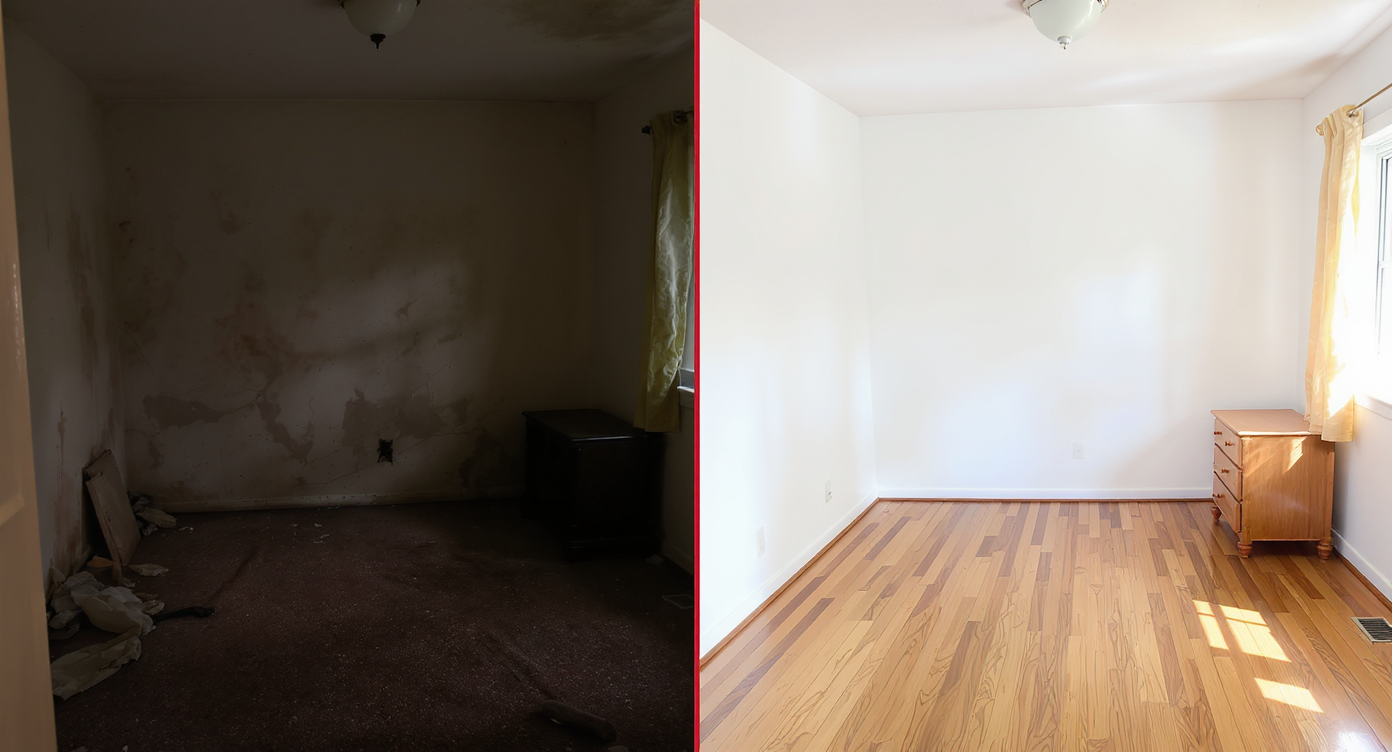
Damaged rooms feel smaller and less inviting; renovation AI brightens and enlarges visual appeal instantly.
Vacant or damaged rooms often feel smaller and riskier on screen than ones presented with a clear, credible plan. Online, buyers skim fast: a trashed carpet or scattered debris can stop the scroll for the wrong reason. Even motivated investors hesitate when they can’t picture the end state — not just the cleanup, but the choices after cleanup: flooring, paint, lighting, layout.
Consider the classic “cheap house with a history” scenario. The carpet’s a biohazard, glass glints under harsh light, and everything looks beyond saving. A simple, photorealistic renovation render reframes the conversation. Instead of “Can this be saved?” the question becomes “Do we like light oak or medium walnut?” That change shifts energy from fear to decision-making, which is exactly where progress (and purchase intent) lives.
Anecdote
That perfect-but-awful living room: cigarette haze, needles in the carpet, glass catching the light. A quick renovation render with fresh LVP, soft white paint, and a simple ceiling fixture instantly changed the conversation from “yikes” to “this could work.”
What Interior Renovation AI Actually Is (In Plain Language)

Interior renovation AI uses existing photos to propose realistic, plausible design transformations.
Room transformation AI is a design tool that takes an existing photo and proposes plausible renovations — new floors, repainted walls, reconfigured elements, and updated fixtures — with lighting and perspective handled automatically. You give it the starting photo; it returns polished images that look like the room after the remodel.
With ReimagineHome.ai’s Interior Renovation tool, you can keep structural elements the same or explore deeper changes, then iterate quickly until the space feels right. The output: sharable, high-res images you can use in proposals, listings (labeled as renderings), or contractor briefs.
How Interior Renovation with ReimagineHome.ai Works Step by Step

ReimagineHome.ai workflow allows homebuyers and designers to align renovation plans efficiently.
MLS and portal guidelines often reward clear, high-resolution images — ideally 3000+ pixels on the long edge — and the same standard helps AI renovation tools deliver best results.
- Choose the right photo(s). Aim for a straight-on, wide composition that shows the major surfaces (floor, two walls) and avoids heavy motion blur or extreme tilt.
- Upload to ReimagineHome.ai’s Interior Renovation workspace.
- Select the renovation scope. Start with universal fixes: remove ruined carpet digitally, preview LVP or engineered wood, repaint walls, adjust lighting, and test fixture updates.
- Pick styles or materials. Try neutral paint with warm floors for resale, or push contemporary vs. traditional to fit the architectural bones.
- Generate, then review. Save 2–3 strong options so stakeholders can compare apples to apples.
- Refine with quick helpers. If your original image is tilted, use ReimagineHome.ai’s Straighten Angles; if it’s dim or flat, run its Image Enhancement tool for truer color and contrast before re-rendering.
- Export for sharing. Download high-res files for MLS galleries, a seller pitch, or a contractor packet with notes on finishes and measurements.
Pro tip: Capture more than one angle when possible; multiple views make it easier to sanity-check scale and flow.
Tips and Tricks for More Realistic Results

Using accurate materials and lighting previews helps avoid costly mistakes in renovation decisions.
Previewing renovation or wall color changes visually can prevent costly “paint regret” and flooring do-overs later.
- Keep it plausible. Match finishes to the home’s era and market; a 1920s bungalow wears lighter profiles differently than a 1990s box.
- Lead with floors, walls, and light. In rough spaces, a crisp floor and clean paint carry 80% of the perceived transformation. Use ReimagineHome.ai’s Repaint Wall to dial the palette just right.
- Use neutrals for resale. Room design AI shines when you keep buyers focused on space and light rather than polarizing colors.
- Mind scale. Choose plank widths, tile sizes, and fixture proportions that fit the room; oversized selections can skew realism.
- Iterate side-by-side. Generate 2–4 looks with one constant (same floor, different wall color) to make decisions objective.
- Prep the source image. Straighten, brighten, and if needed, upsize with Upscale Resolution before rendering for crisper detail.
- Label clearly. If you share renders in marketing, mark them as “AI renovation preview” to set proper expectations.
Want a deeper color decision shortcut? This guide on style swaps and repaint choices shows how to land a palette in minutes: style swaps for real rooms.
Visualization Scenario
Upload a photo of the trashed den, digitally remove the carpet, test three floor options (light oak, medium walnut, charcoal tile), and compare them with two paint palettes. Share the best two images with a contractor for a fast quote and with a seller to approve scope.
FAQ
Is AI interior design from a photo accurate enough for real renovations?
It’s a planning and communication tool, not stamped construction drawings. Use it to choose finishes, test layouts, and align budgets; confirm final measurements on-site.
Can I preview removing carpet and adding new flooring with room renovation AI?
Yes. Swap carpet for LVP, hardwood, or tile and compare tones side-by-side in ReimagineHome.ai’s Interior Renovation workspace.
What resolution do I need for good results?
Higher is better; aim for 3000+ pixels on the long edge. If your image is small, use Upscale Resolution first.
Is it okay to show AI renovation previews in a listing?
Yes, when clearly labeled as renderings. Many agents include both the current photo and an “AI renovation preview” to set expectations while inspiring buyers.
How fast is ReimagineHome.ai for room transformation AI?
Most renders generate in minutes, letting you iterate quickly and keep momentum with clients or crews.
Visualize Your Next Listing (or Project) Before You Commit
Even simple clutter removal can make key features easier to spot, but a full renovation preview changes the whole story. In minutes, home design AI reframes a wrecked or dated room into a believable, clean-lined space with clear next steps — rip the carpet, select the floor, choose the paint, and move.
Whether you’re an agent trying to boost clicks, an investor planning scope, or a homeowner staring down a mess, a realistic plan calms the room. Try the transformation yourself in ReimagineHome.ai’s Interior Renovation tool, or explore the rest of the platform at ReimagineHome.ai to build a faster, safer path from “before” to “after.”